

Run a monitor on demand
Key Concepts
monitors and Workflows can be run individually or automated by a schedule to run on an ongoing basis.
Continuous monitoring at a reasonable frequency allows us to generate meaningful metrics on your API performance and warn you when things go wrong.
A schedule lets you run a monitor or workflow on an automated recurring basis from a remote location. The location is typically one of the more than 60 cloud location around the world that APImetrics provides, but it can also be a special location supported by APImetrics over a mobile connection or an internal location if you have installed the APImetrics software agent on your own hardware.
You can create and edit schedules so that you can exercise your APIs at exactly the frequency you need from the locations that matter to your users. You can also use schedules to halt calls temporarily for instance when APIs are taken down for maintenance.
Making a 'one-off' call
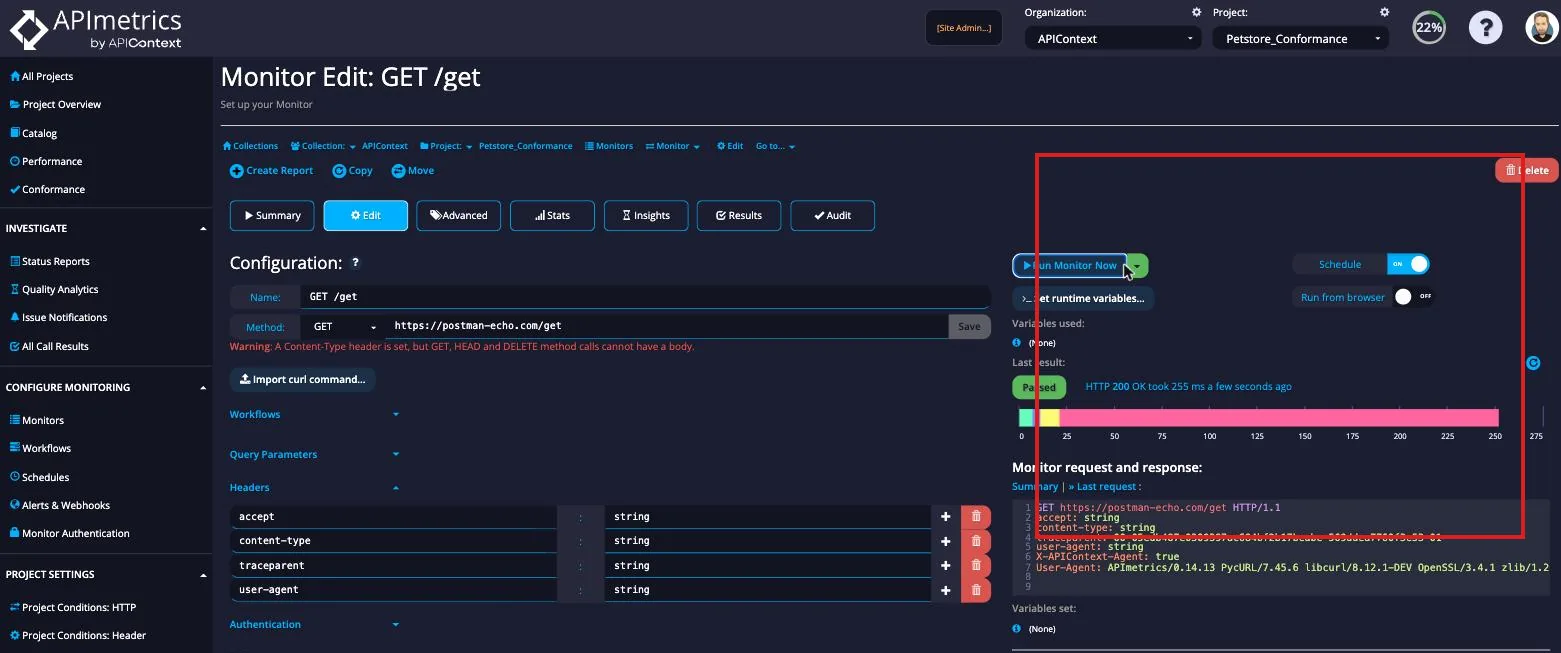
Open a monitor's Edit view and click Run Monitor Now to run it immediately from our default external location. Use the dropdown arrow next to the button to pick a specific location instead.
The result appears inline as soon as the call completes — showing the pass/fail verdict, HTTP status, latency, and the full request and response so you can inspect headers and body without leaving the page.
Automating Monitors (Scheduling)
APIs can be scheduled to run automatically from any of our 80+ locations around the world and the cloud. We handle distribution of the calls.
We normally recommend a frequency of one call, per location, every 10-15 minutes i.e. 4-6 times per hour.
Even though you might have a gateway rated to thousands of calls per minute, we have seen behavior where if 2 or more calls arrive within a few milliseconds of each other, the calls will be rate-limited on the assumption that the monitors will exceed the limit. In a schedule, the calls from each location are offset from one another to avoid this situation.
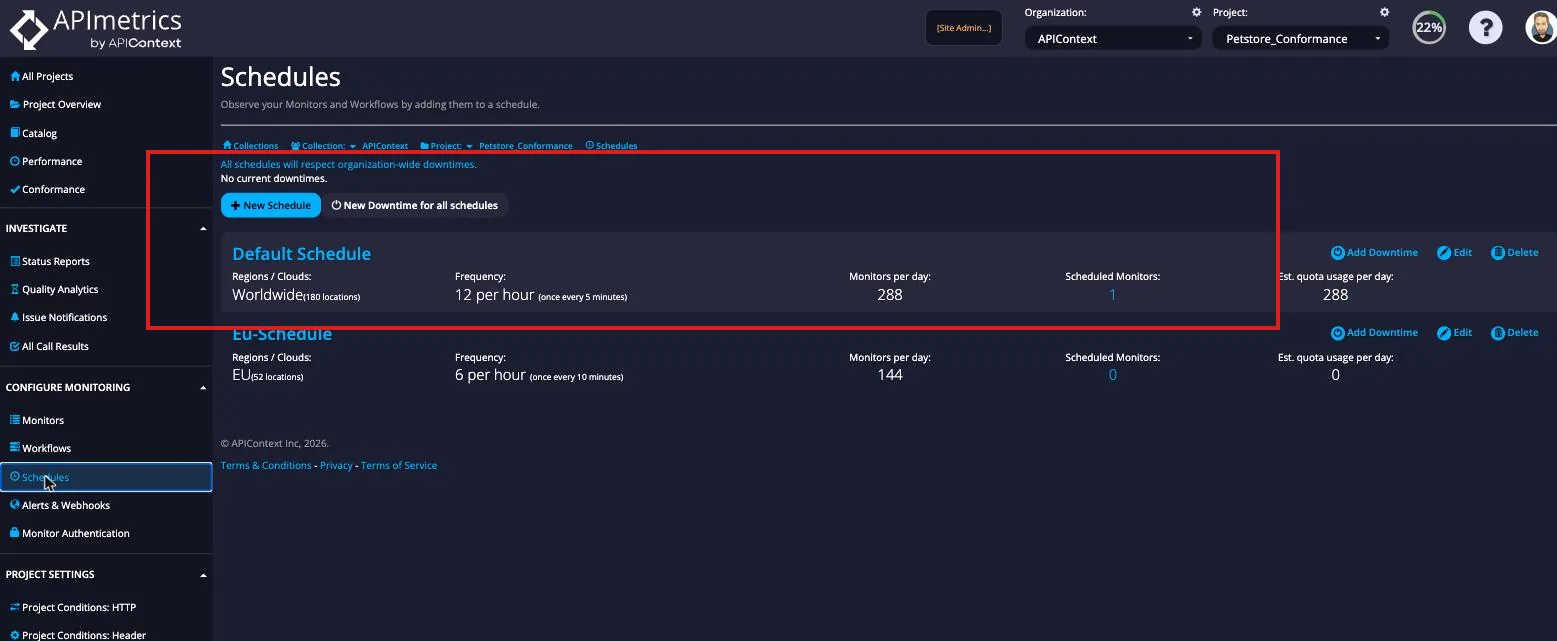
Click Schedules in the left-hand menu to open the Schedules page. Each schedule card shows its region coverage, frequency, monitors per day, and how many monitors are currently assigned to it. A Default Schedule (worldwide, every 5 minutes) is created for every new project.
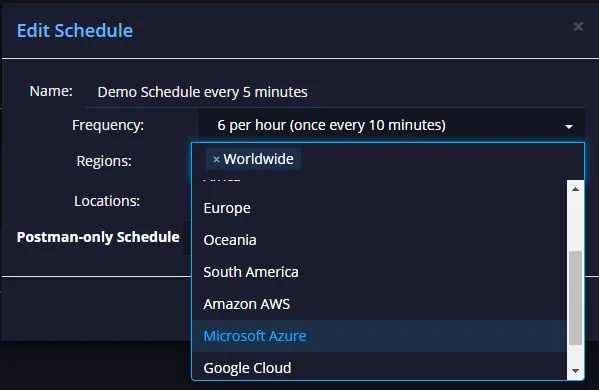
Edit a schedule by clicking its Edit button. You can change the region set to a specific continent, cloud provider (such as Amazon AWS or Azure), or any combination of individual locations.
Frequency of Calls
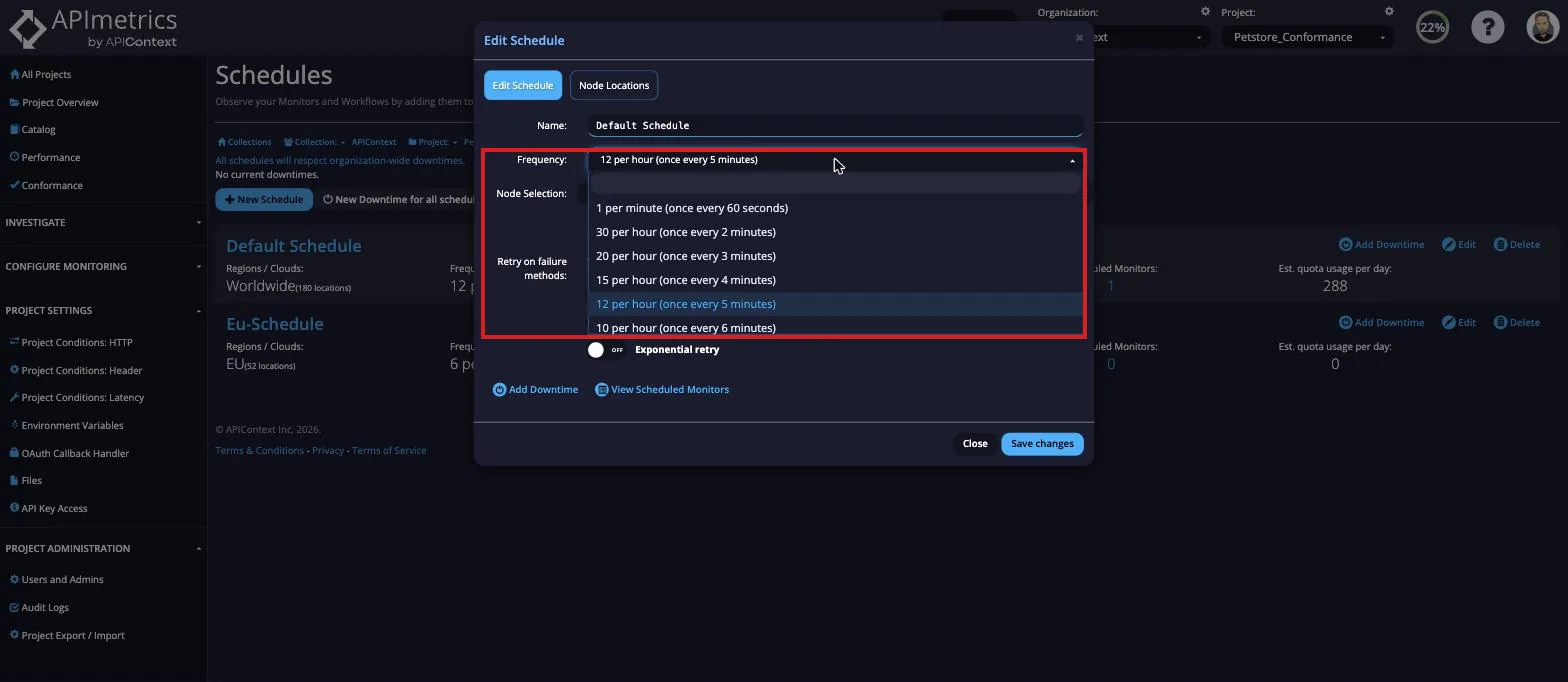
Change frequency of calls from the drop-down - the scheduler will automatically randomly assign a location but over a period of time, all agents in a group should be used roughly an equal number of times.
Downtime
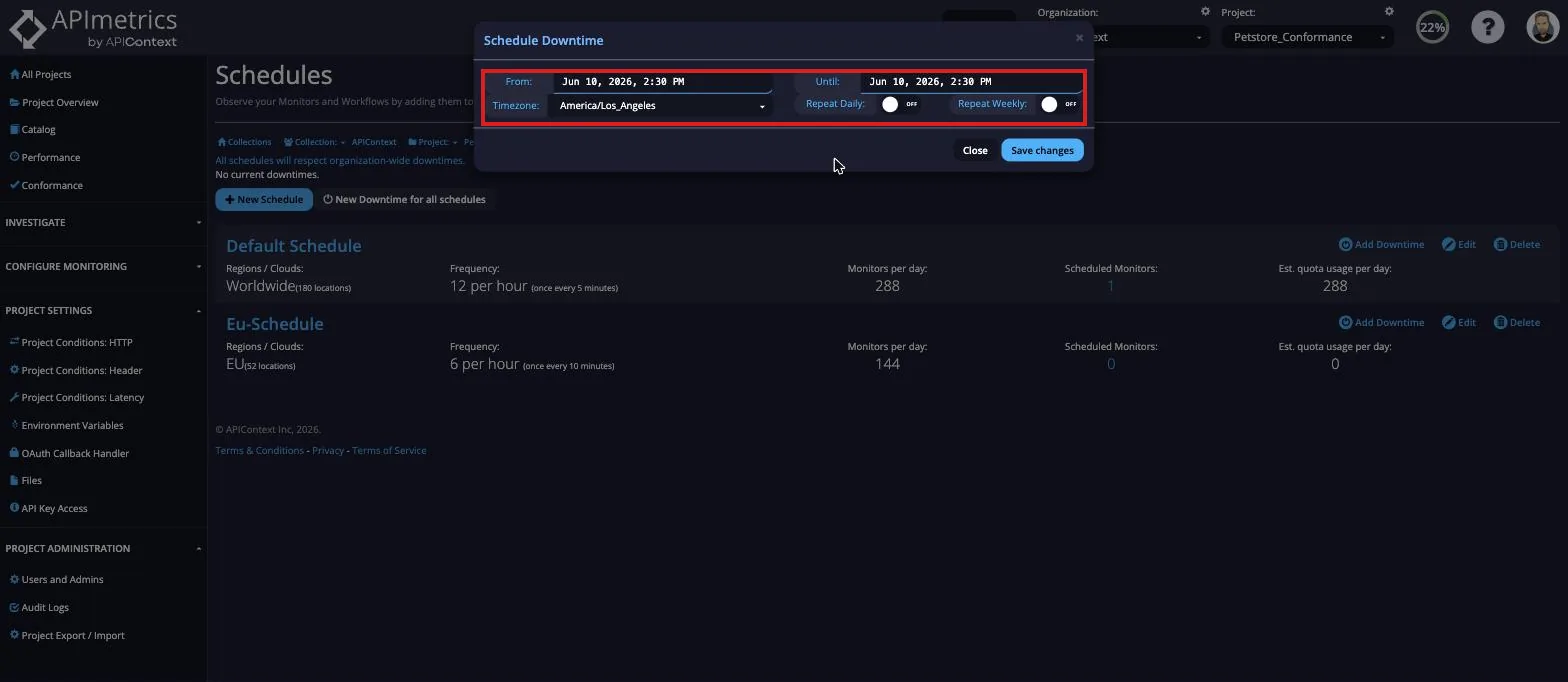
If you need to suspend calling for routine maintenance, or a period where you don't need monitoring coverage, you can schedule downtime from the scheduling menu.
You can compare and contrast your schedules on the schedules page. For a schedule that is in use, you can see how many a day the schedule will invoke a monitor.
You can delete a schedule with the Delete button.
Clicking on the Schedule All APIs button for a schedule will schedule all your monitors with that schedule.
High-frequency monitoring
Standard schedules run monitors at intervals of 1 minute or longer. For latency-sensitive services where sub-minute coverage matters, high-frequency monitoring supports intervals as short as 1 second.
High-frequency monitoring is available on CONTRACT tier accounts only and requires the feature_highfreq entitlement to be enabled on your account. Contact your account manager or sales to enable it. See plan availability and pricing.
Available intervals
| Interval range | Availability |
|---|---|
| 1 second – 59 seconds | Contract tier (feature_highfreq required) |
| 1 minute – 24 hours | All tiers |
To set a sub-minute interval, select it from the frequency picker when creating or editing a schedule. If the option is not visible, the feature_highfreq entitlement is not enabled on your account.
High-frequency monitors consume quota at a proportionally higher rate. A monitor running every 5 seconds uses 12× the quota of a monitor running every minute. Review your monthly run quota before enabling high-frequency schedules.