Catalog
The Catalog function allows you to generate an API Key that will integrate into your application and allow us to view live monitors, as well as all your current monitors, and show these in your Catalog. From here, you can add any of these monitors to your Monitor List and add them to schedules or workflows. Additionally, you can upload your OAS specification to compare to the live traffic for any inconsistencies between the intended architecture and the implemented architecture.
Configure Catalog
Set up an API Key
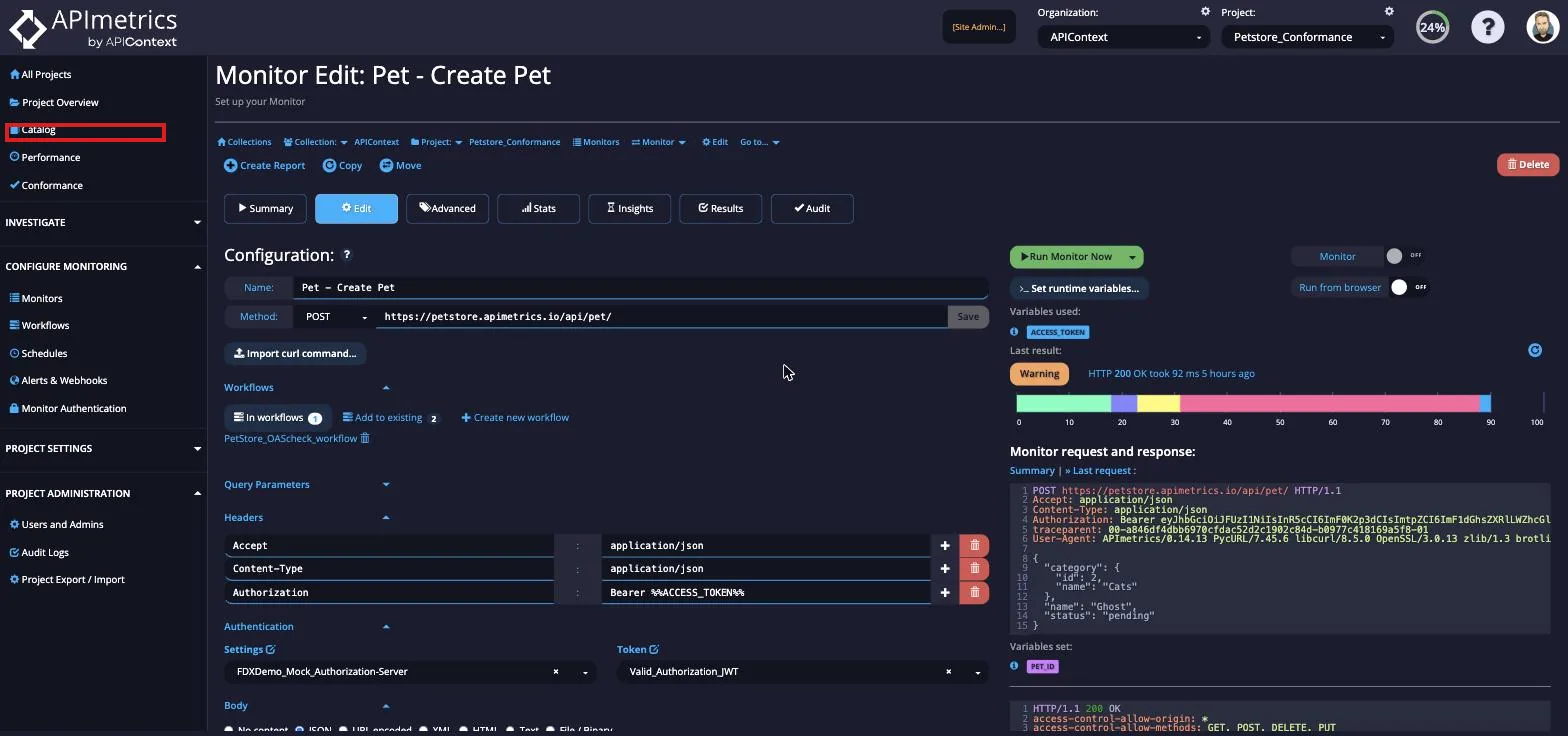
The Catalog can be found under the Analytics & Reporting section in the sidebar.
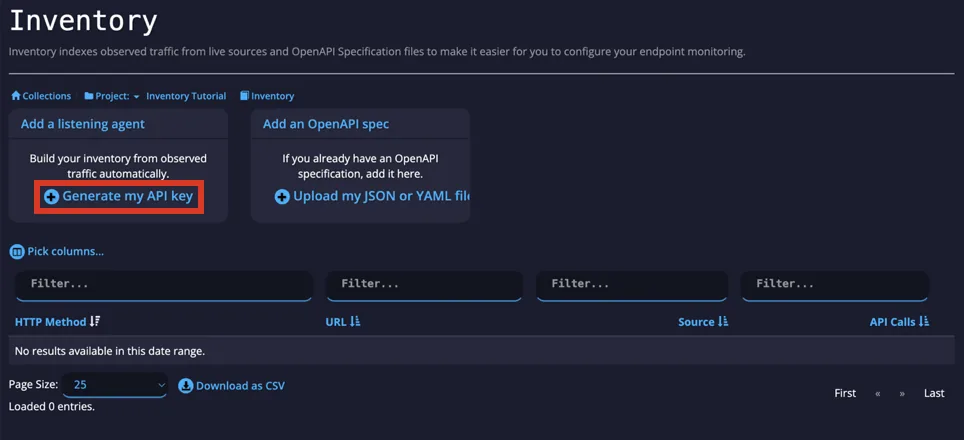
From the Catalog, you can now create your API Key and upload your specifications. To create your API Key, select the Create an API Key button.
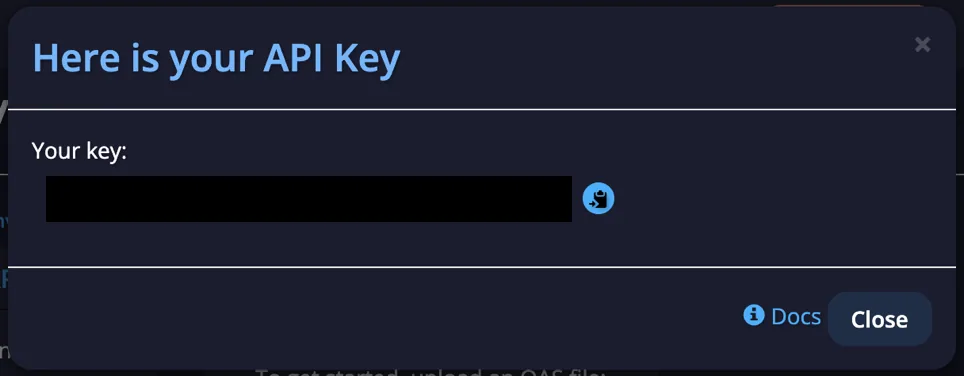
A popup will appear with your new API Key that you can copy to your clipboard.
If you lose your API Key, it can also be found under the Advanced section in APImetrics API. From there it can also be deleted.
Integrate With Your Application
APImetrics has multiple observability and egress adaptors for integration with your application. You can view our observability adaptors.
Optional: Upload OpenAPI Specification
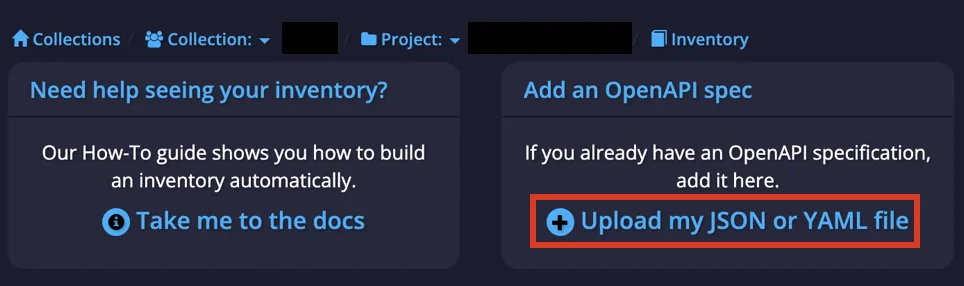
To upload your file, select the Upload my JSON or YAML file button.
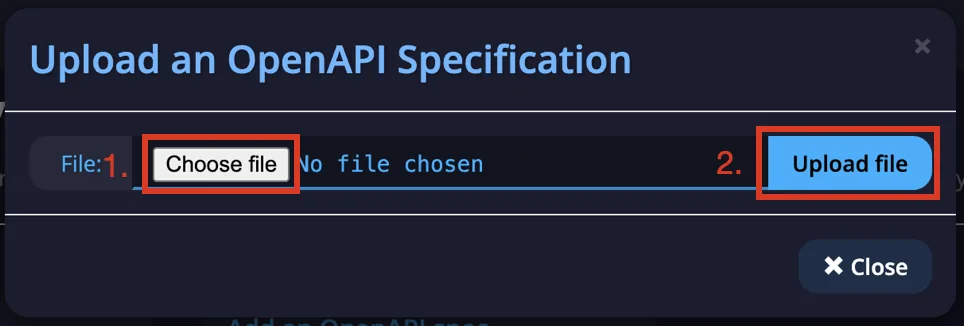
This will open a popup where you can upload your file by selecting the Choose File and then the Upload File buttons.
Investigating Results
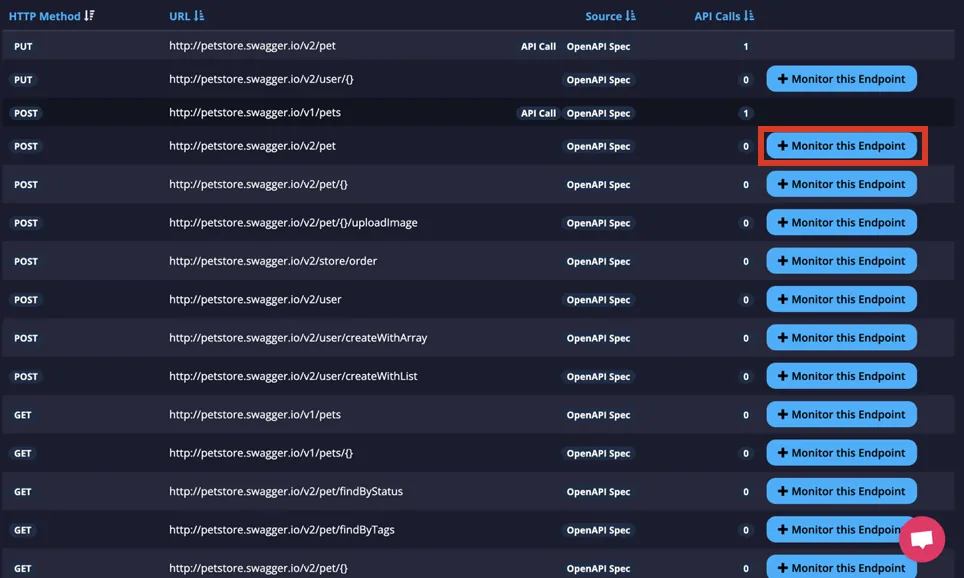
Once you've configured your Catalog, you can then explore your results. From here, you can see the HTTP Method, the endpoint URL, the Source of the call, and how many times it has been called. The Source is useful for telling you what monitors are and are not identified in your specs. All of your monitors will be aggregated in the Catalog for easy analysis. From here, you can also add any monitors that are unmonitored by APImetrics by clicking the Monitor this Endpoint button.