

Projects
The Basics...
For what a project is and where projects appear, see Project basics and access levels.
Click 'Create Project' to create a new project
Click on a project name to enter the project
Click on the + to add a new API
Click on the * to favorite a project
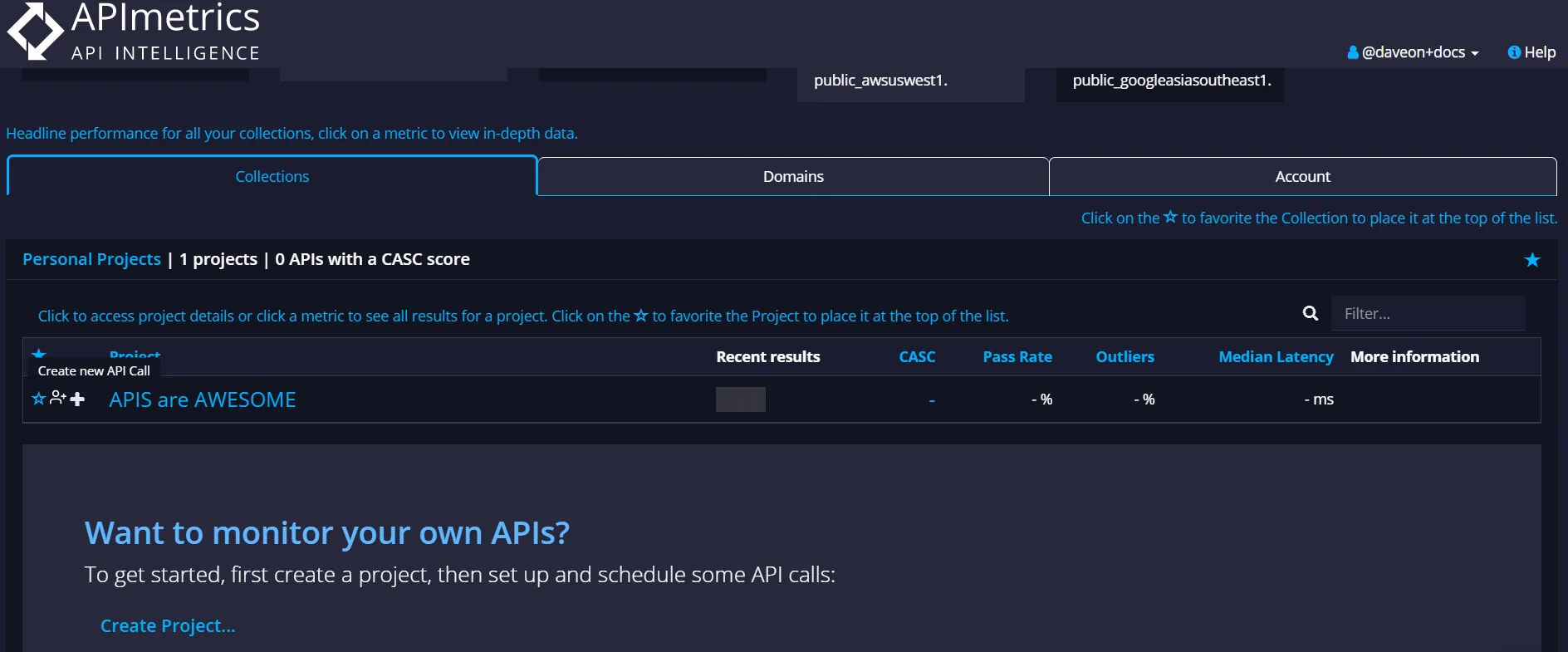
To get the URL of a project's home page, select the link icon next to the project's star. Its tooltip reads "Copy the URL for this project to your clipboard". The tooltip changes to "Copied to clipboard" once the URL is copied. Paste the URL into a browser to open that project's home page. The same icon appears in the project list of an organization.
When you're logged into a project, in the sidebar, the Project picker drop down lets you see which Projects you have access to. They are grouped alphabetically by access level. Selecting a Project will select it and let you view the data for it.
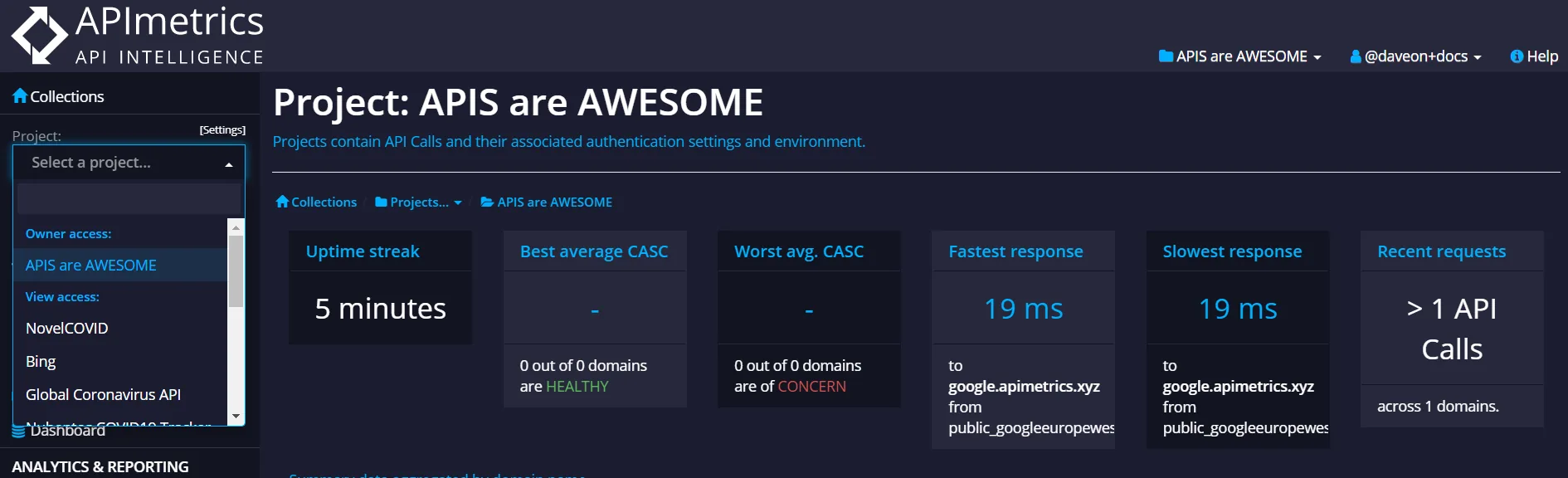
'Collections' take you to the main Collections management page.
The drop down picker will show you all the individual projects you have access to and your level of access.
Project Access Levels
A project has five access levels: Owner, Manager, Editor, Analyst, and Viewer. For what each one lets a user do, see Access Roles.
Project Administration
Project owners will see a [Admin] link next to the Project picker. This will lead you to the Project Administration page.
The Project Admin page lets the owner of the Project invite other users to the project, or remove access from existing users.
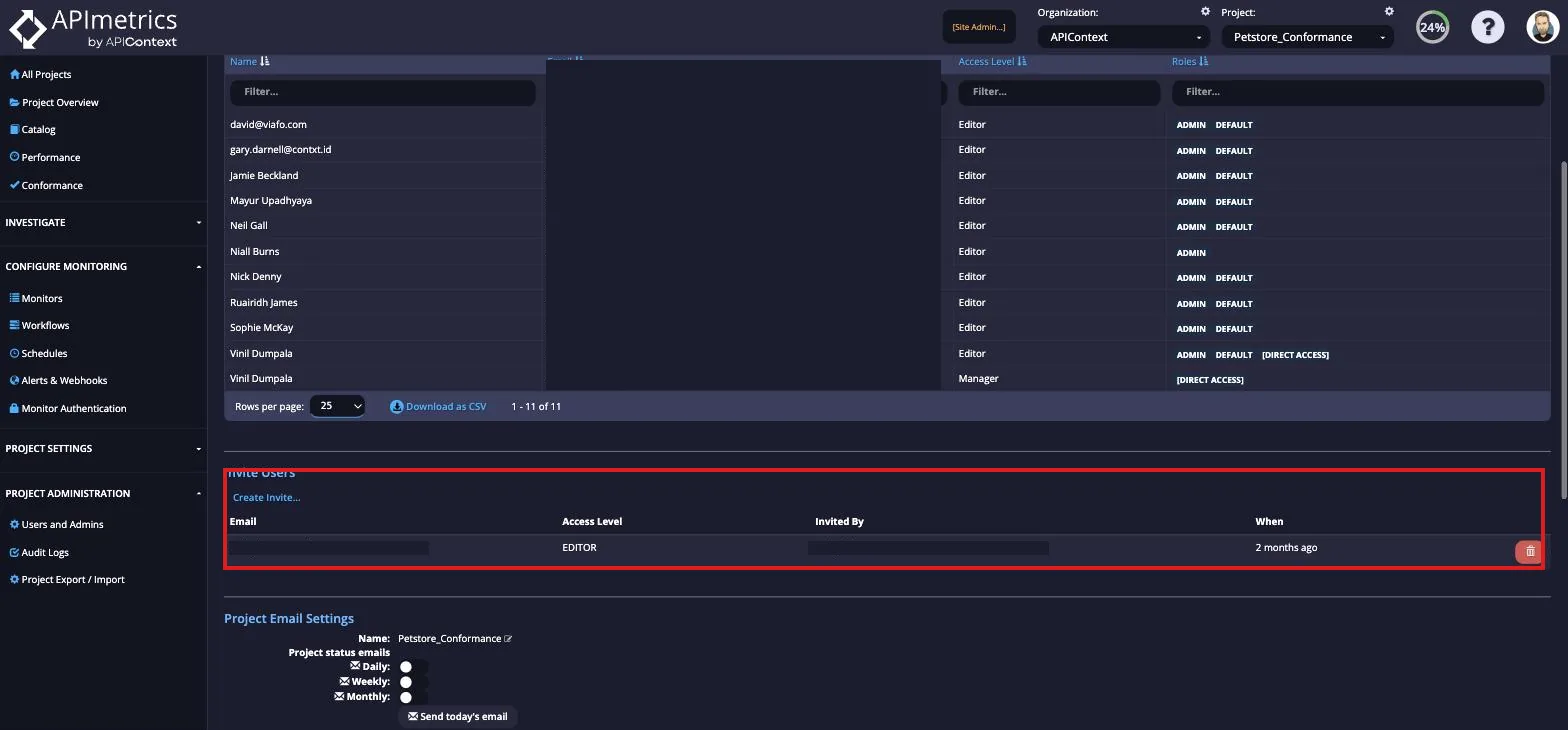
The existing users are listed by access level. If you want to upgrade or downgrade an existing user, use the Add... button make an account picker appear.
Use the Create Invite... link to invite a user to access the project by their email address.
Use the Access Level drop down to pick the access level for the invited user. When you press Invite, an email will be sent with a link to accept the invite.
As well as the email, when they next log in to APImetrics with a matching account, they'll be reminded that the invite is waiting for them.
The pending invites are listed below. They may be deleted before the invite is accepted.
Creating a new project
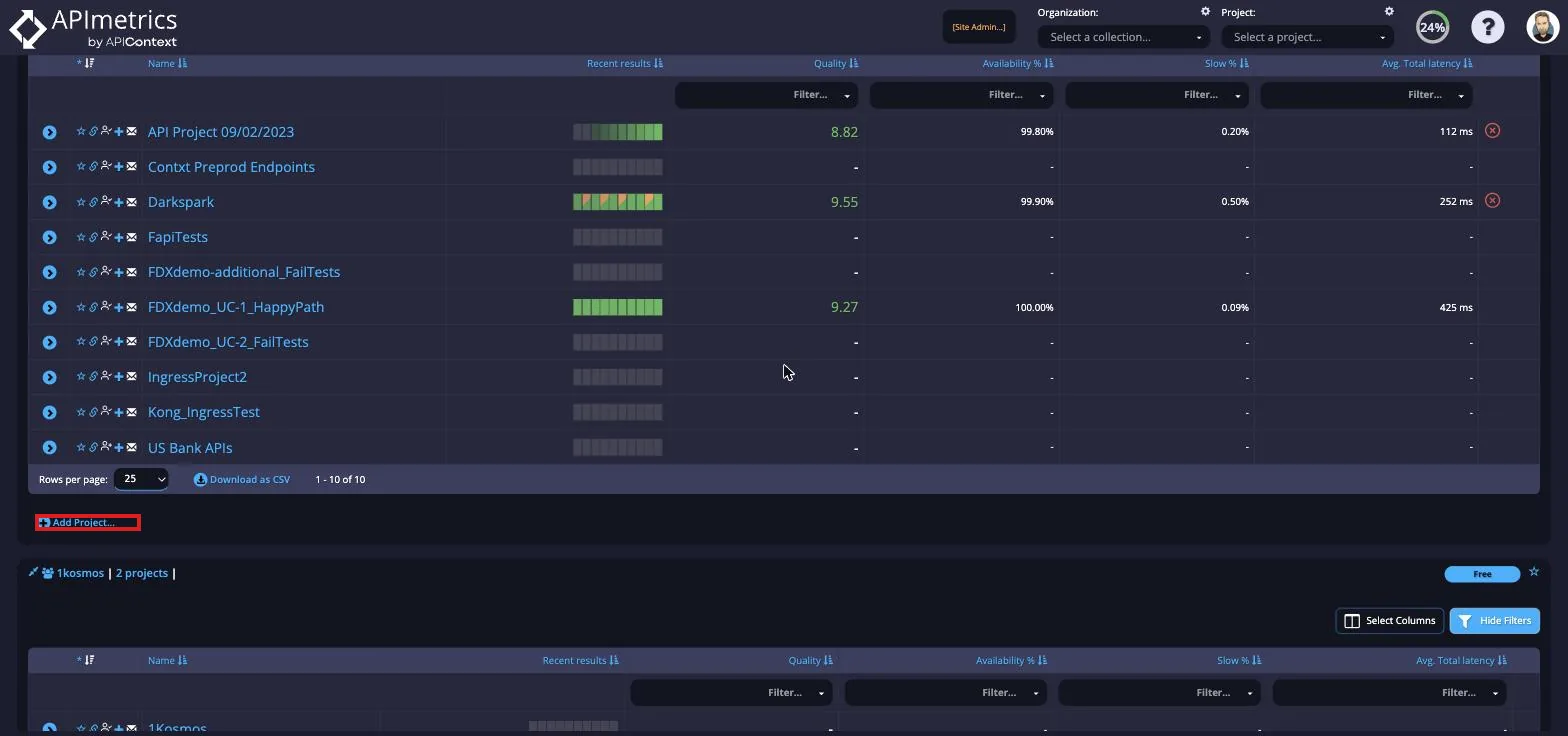
In the top bar, under the Project menu, is an option to create a new project. If you create a new project, you will be the owner.
Deleting a project
('Starter' & 'Team' plans): Users with 'Starter' or 'Team' subscriptions cannot delete projects directly through the portal. To delete your project, contact support.
('Pro' & 'Enterprise' plans): 'Pro' or 'Enterprise' subscription users having either the Owner-level access to the project or Admin-level access to the Organization can delete the project directly from the Organization settings page within the portal.
Note: Before deleting any project, ensure all roles and users associated with the respective project are revoked.