

Creating Reports
Key Concepts
Reports are a great way of summarizing the statistics associated with calls and seeing at a glance how an API has been behaving.
Creating a Report from an Monitor or Workflow
You can create reports in several ways:
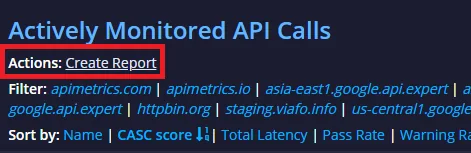
- From the Homepage, CREATE REPORT is above the domain filters
- From an API or Workflow EDIT view
- From the API list
- From the Report menu
Once created, reports can be edited.
Creating From the Report Menu
In the report view list on the left hand navigation, select Create New Report.
Reports are split into GROUPS. In each group you can chose APIs to include.
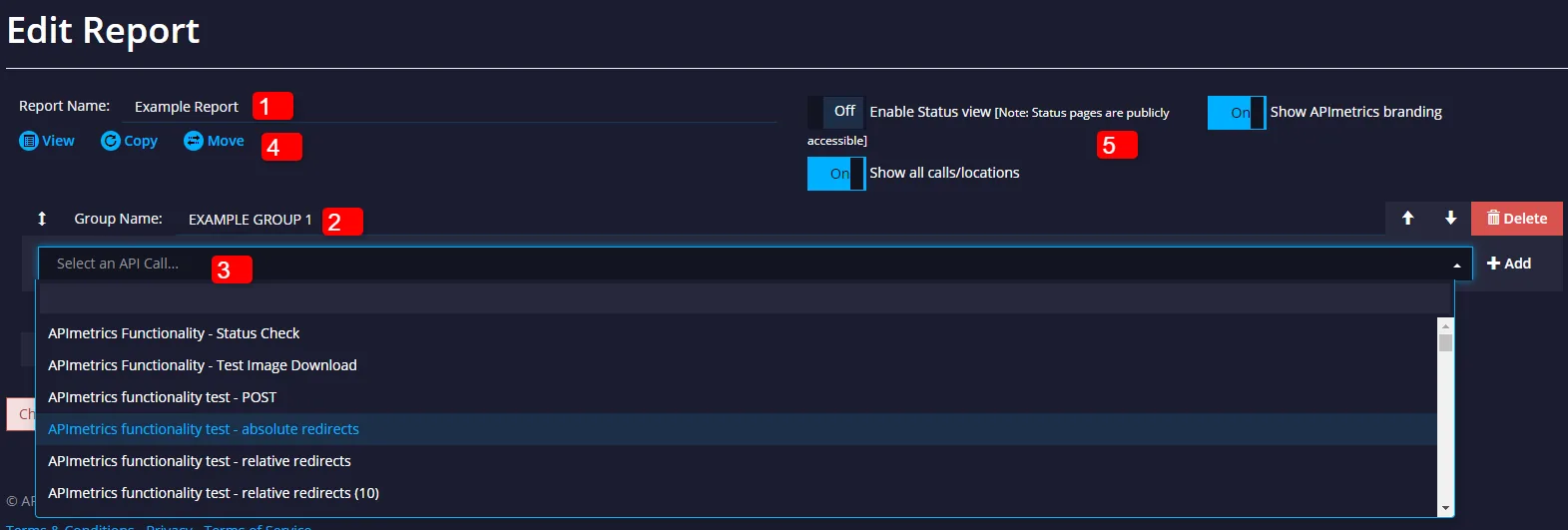
In the report editor:
- Report Name - editable
- Group Name - editable
- API Picker > add an API to a report
- Report controls:
- VIEW - see the report
- COPY - make a copy of your report in the project
- MOVE - move the report to another project
- Public Sharing - create a public dashboard of your report
Reorder groups and monitors
Drag and drop to change the order of your report:
- Drag a group to move it up or down the report.
- Drag a monitor within a group, or into a different group.
The report view shows rows in the order you set in the editor. Changes are saved when you save the report.
Reports at a glance
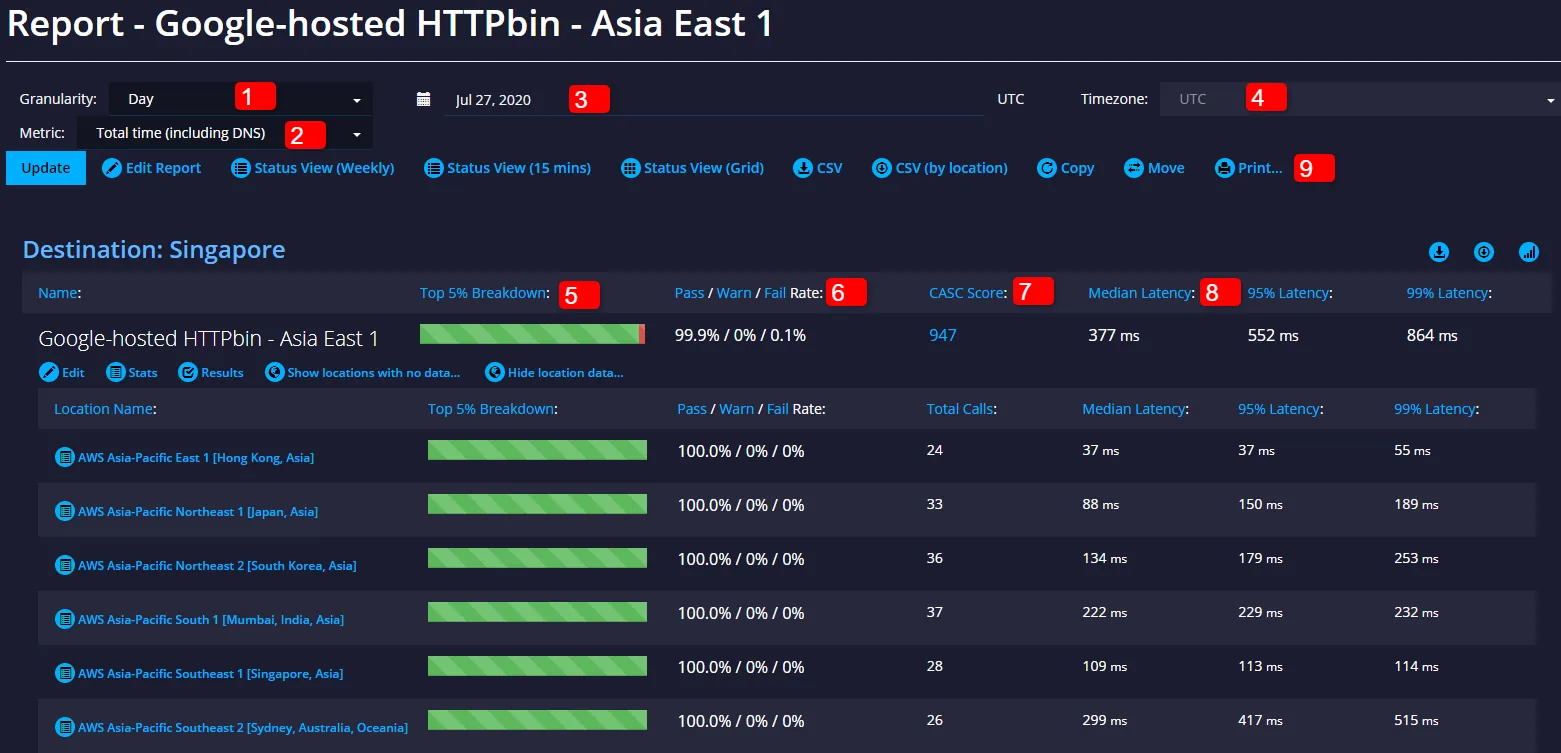
- Select time period for report > day, month, year
- Select report call time slice > DNS, TLS, TCP, Upload, Processing, Download
- Date Picker
- Set or override local Timezone
- Breakdown of the last 5% of calls
- Pass/Fail/Warning percentages
- CASC Score - will take you to the insights view
- Latency breakdown
- Report controls
- Edit
- Status views for public sharing > grid or list options
- CSV download (downloads the statistics currently shown)
- Copy > make a local copy in the project
- Move to another project
- Print > print a PDF formated version of the report
Report tables no longer include a location column. To see results by location, use the location breakdown table on the report.
Making a Report Public
In the edit screen, select the 'Make report public' checkbox. When you view the report you'll have 2 options either the last week, showing uptime in the last hour, week or day, or the last 15 minutes.
You can also send a URL for the report to your colleagues that they can view if they have an APImetrics account and permission to view the report.