

Importing from Postman
Importing Postman Collections copies the monitors into your APImetrics account - if you're rather keep all the configuration with Postman, you can use our Postman Collection runner instead. More information on how to Monitor Postman Collections available here.
To import from Postman directly, first you need to generate a Postman API key. We will use this to fetch your Postman Collections.
More information on how to access or generate a key is available here: https://learning.getpostman.com/docs/postman/postman_api/intro_api/#authentication
.
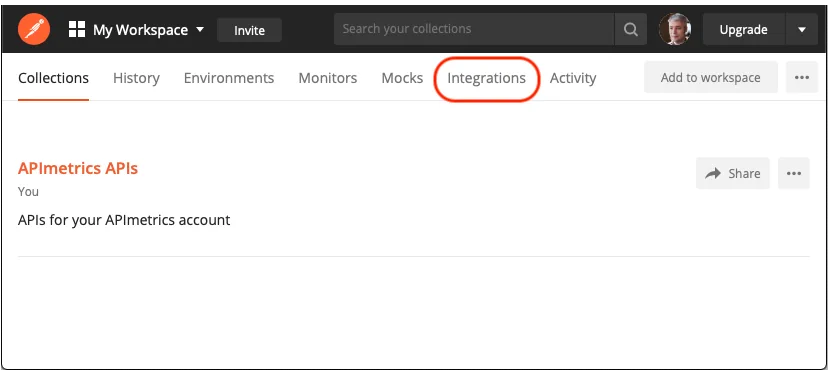
The first step is to log into postman and view your dashboard and select Integrations:
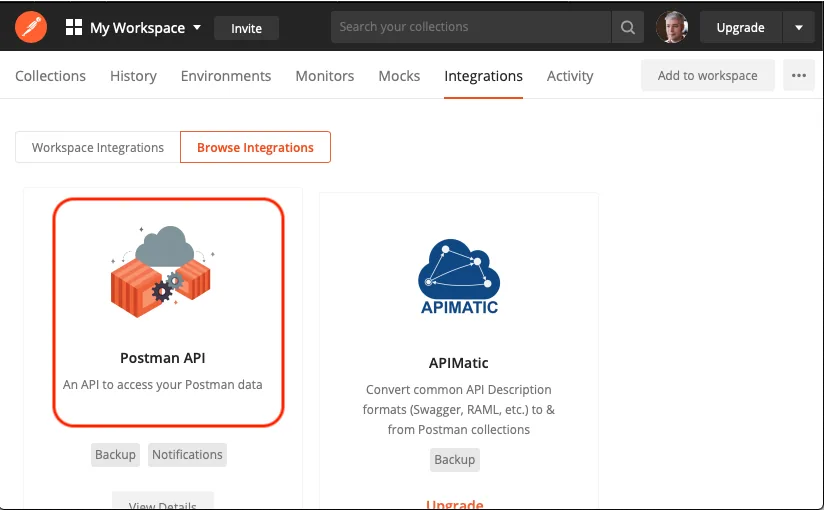
Browse integrations and select Postman API
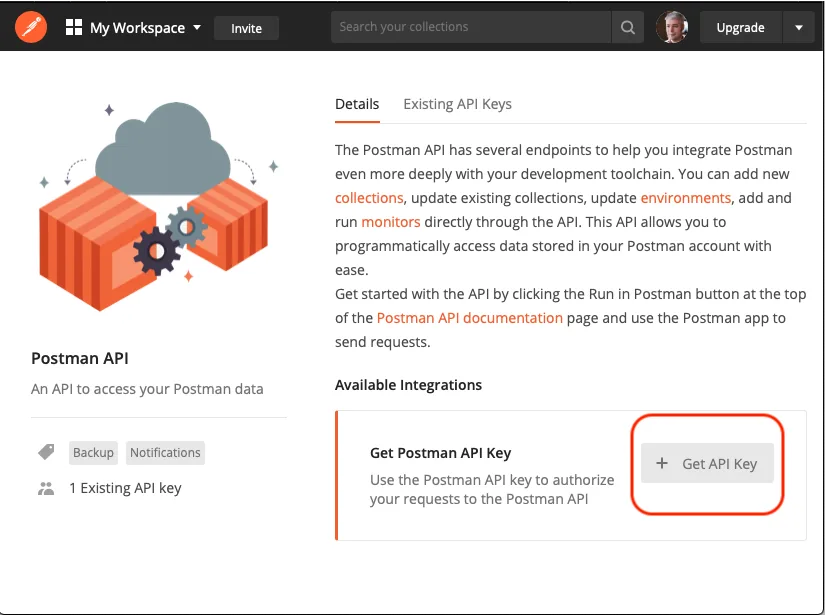
Select Get API Key to generate an API key:
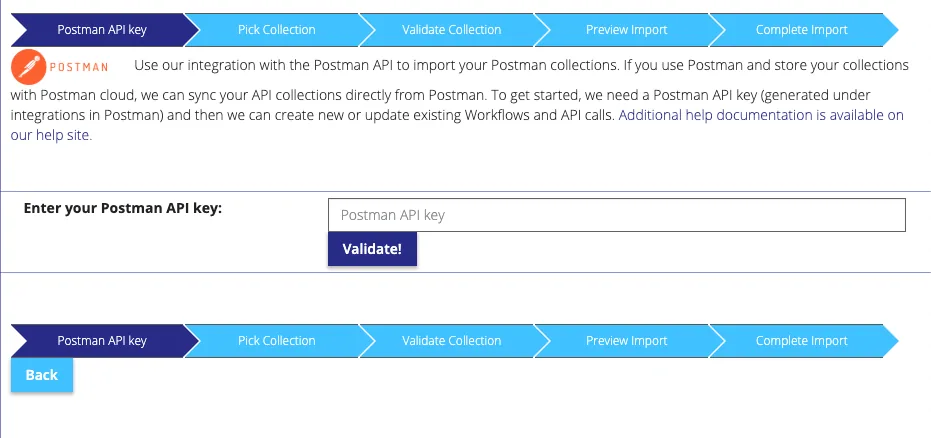
Once generated, copy your Postman API key and enter it in the APImetrics site, and click Validate:
As long as the API key is correct, and you have Postman quota available, we will show you the list of Collections available to import:
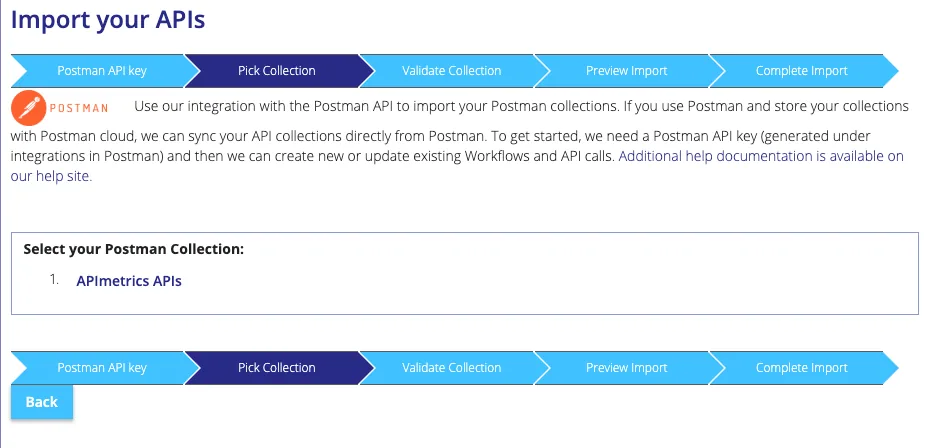
Click on the Collection you want to import. We will then validate that we can handle the file format, and warn you of any potential warnings or errors:
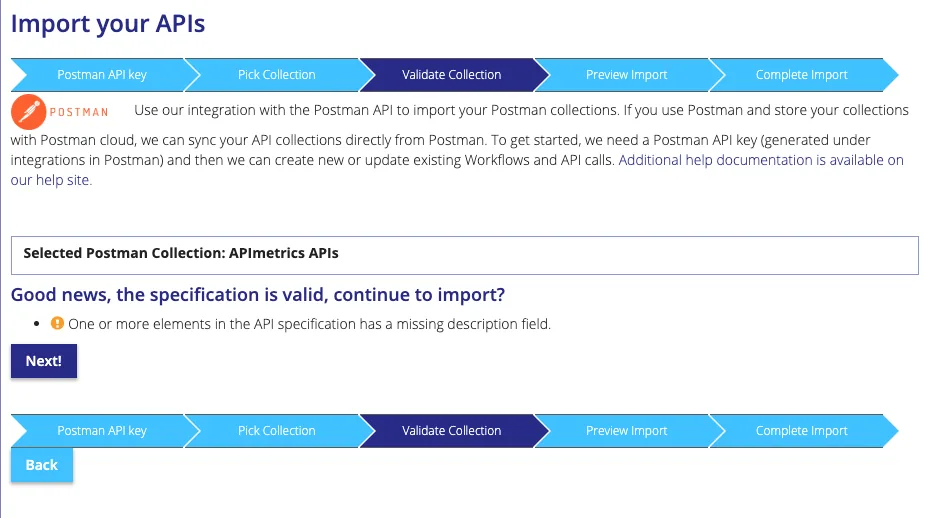
Assuming everything is okay, click Next. We will then show you the Workflows and APIs we will generate at the final step:
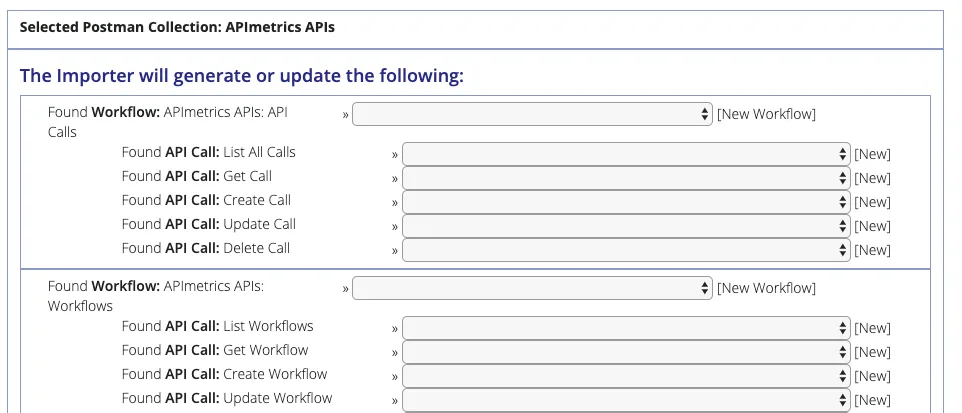
In the dropdown menus, you can select existing Workflows and monitors to overwrite. If you have previously imported this collection, we try to match the calls with the previously imported calls.
If you're happy, click next to generate the Workflows and monitors:
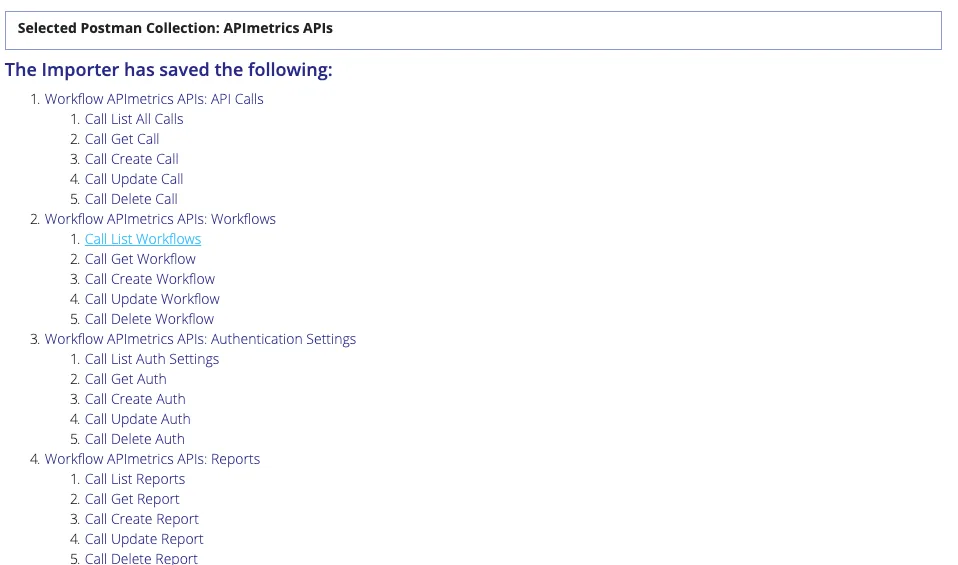
The import has completed. Note you may need to set up any environment variables your monitors require. You may also want to check that your monitors have the correct Authentication settings.
Once you've reviewed your calls, you should set up a schedule for your new workflows.