

The Basics
The Basics
Within APImetrics you can set up a type of authentication to be used with a call, or set of calls - that will be something like an API Key, OAuth and so on, and then, within the type of authentication you can set the TOKEN to be used.
Authentication Settings
In the sidebar, under Configure Monitoring, select Monitor Authentication (open it). The Auth Settings page lists the auth settings in the project by name, tags, auth type, and last update.
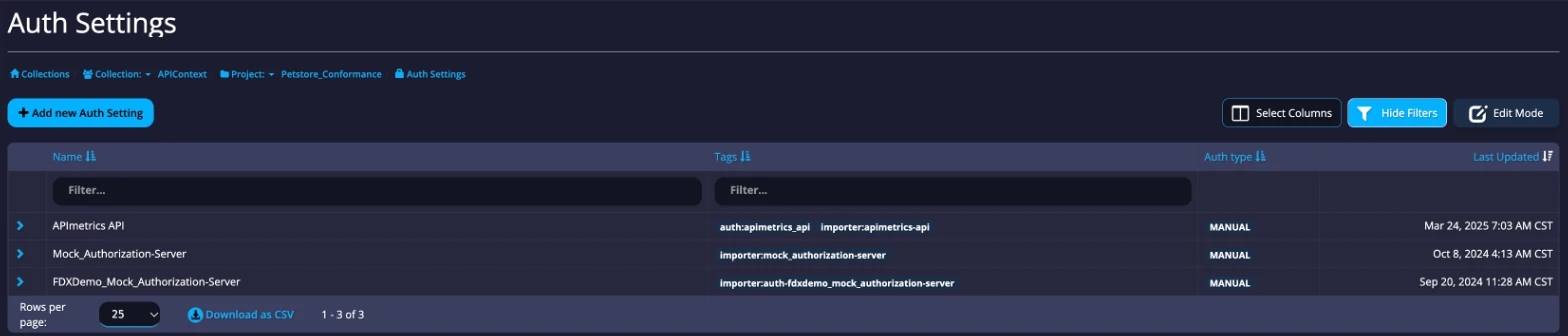
Select Add new Auth Setting to open the Create Authentication panel.
Creating an Authentication Configuration
There are four things to consider when creating a new authentication configuration.
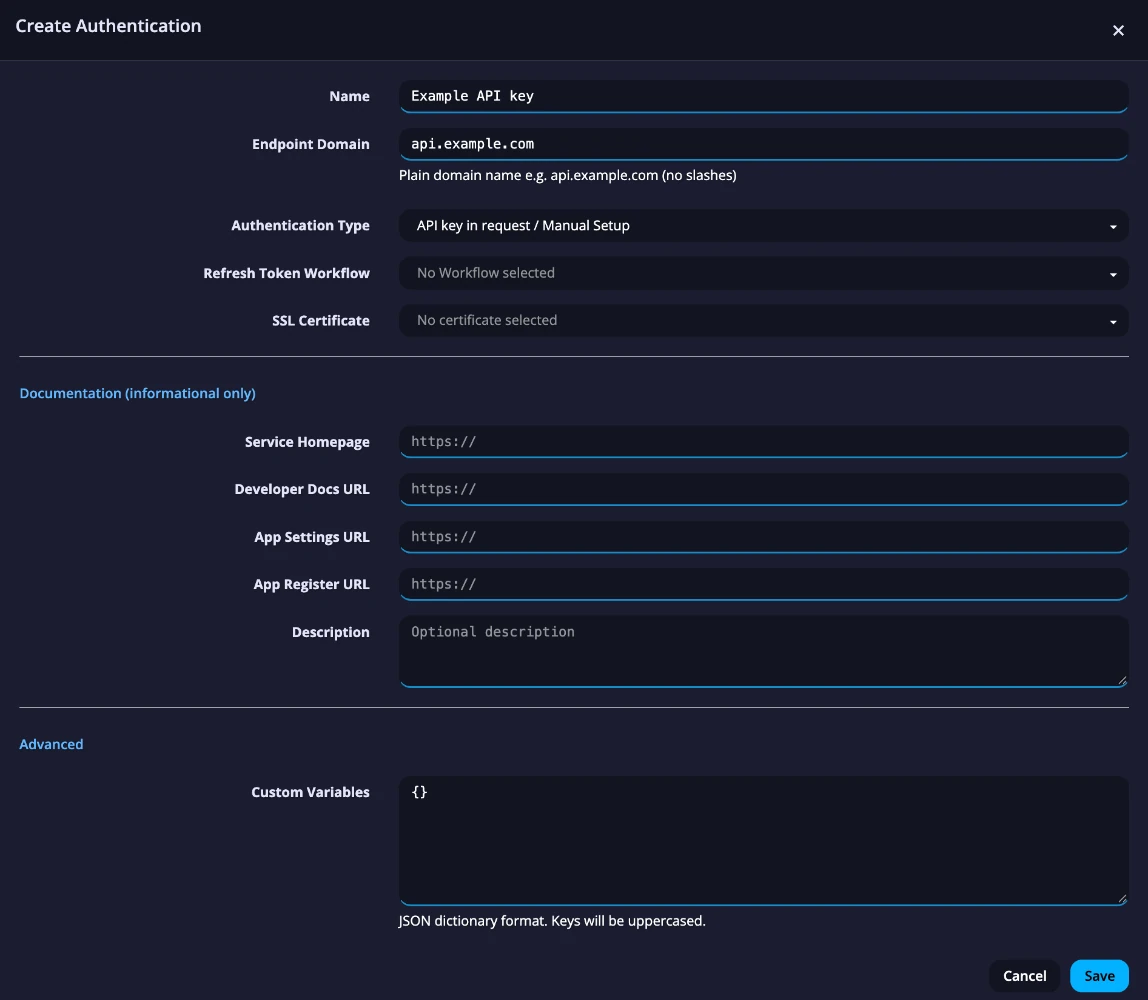
- Endpoint Domain: the domain the auth calls, as a plain domain name such as
api.example.com(no slashes). This helps with identification and with automating parts of the auth process. - Authentication Type: API key in request / Manual Setup, OAuth 2, Basic Auth, OAuth 1, OAuth 2 + JSON Web Signature (JWS), or OAuth 2 + JSON Web Token (JWT). The OAuth types add fields for the provider's Authorize URL, Get Token URL, Client ID, and Client Secret.
- Refresh Token Workflow and SSL Certificate: shown for API key in request / Manual Setup. The SSL Certificate field adds mutual TLS.
- Advanced: Custom Variables, a JSON dictionary of values to use with this auth setting. Keys are converted to uppercase.
To run a workflow or monitor when a provider redirects back after sign-in, use the callback handler.
Tokens
Tokens are set and configured for an Authentication Setting - i.e. you could have multiple OAUTH tokens for the same domain with each one using a different scope.
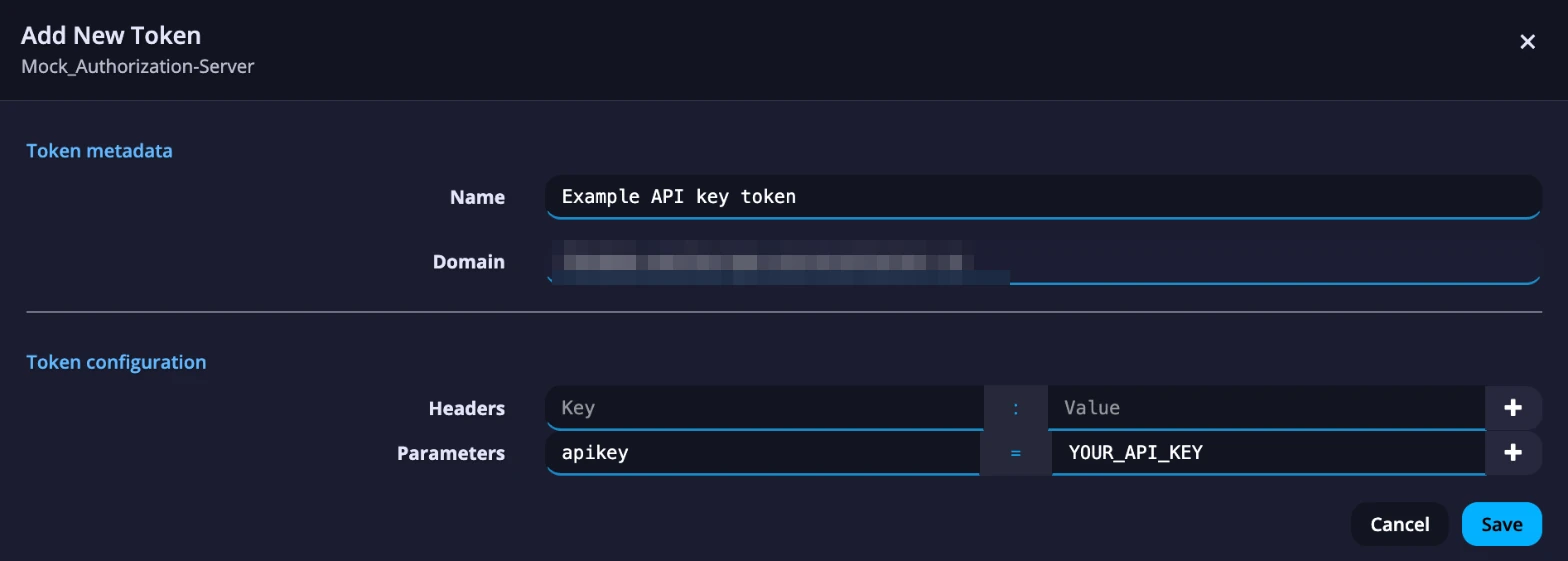
In the example, we're going to create a manual token with an API Key for use in the call string.
Select an auth setting in the list to open it. The page shows its name, domain, and auth type, and a table of its tokens.
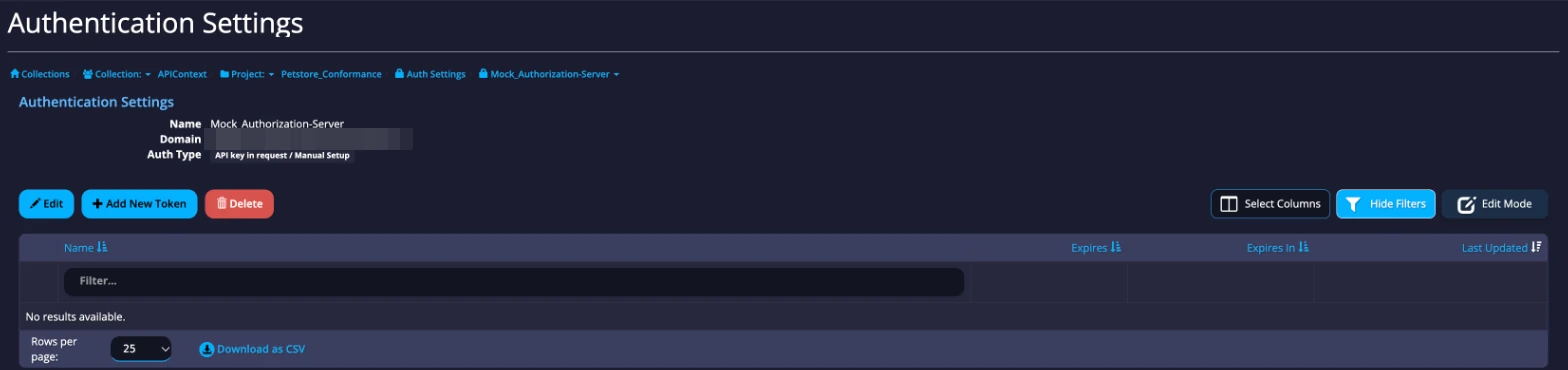
Select Add New Token, give the token a name, and then set the headers or parameters it adds to the call.
Using the AUTH settings and TOKEN
Once you have saved the auth setting and token, open your monitor's editor. Choose them under Settings and Token in the Authentication section.