

Issue Details
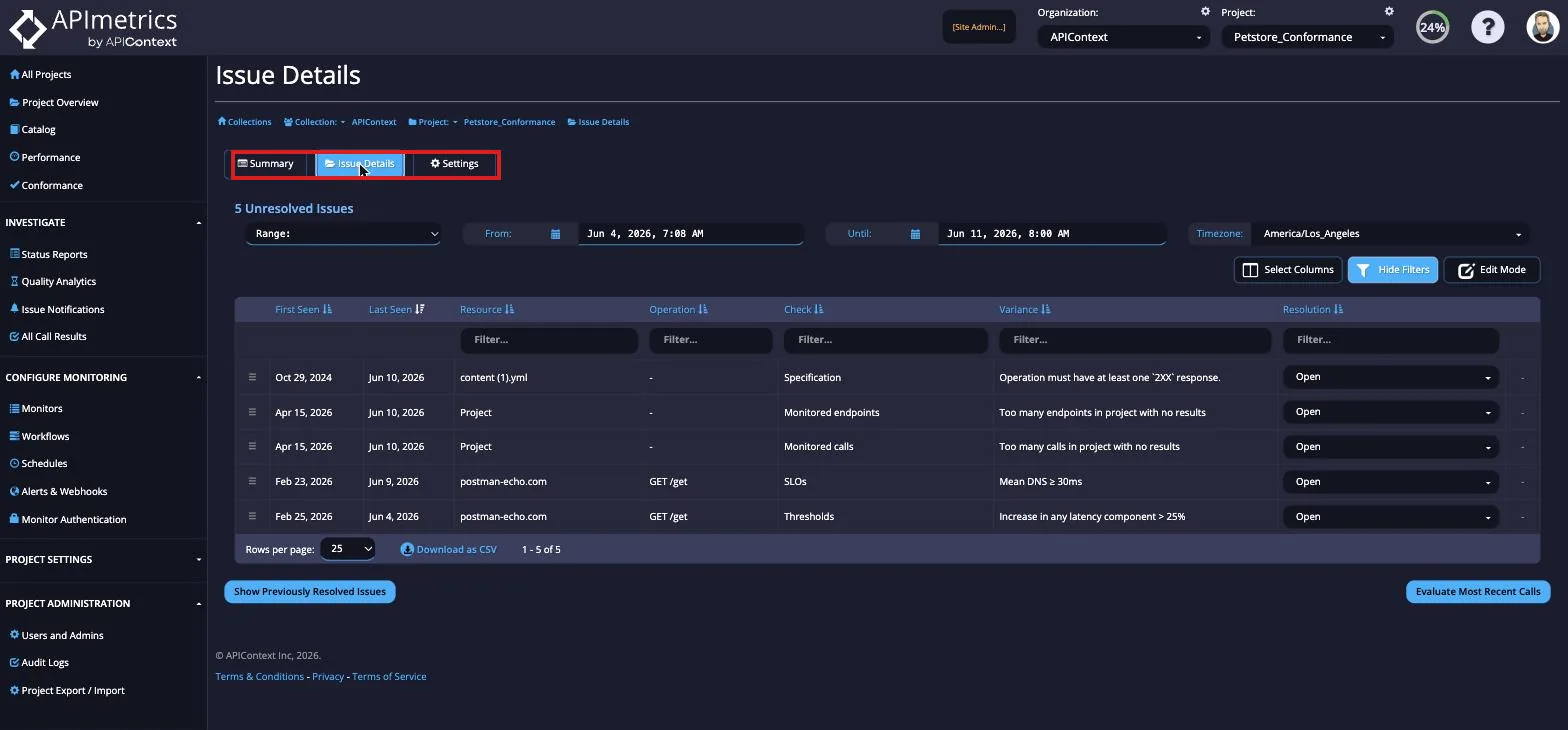
The Issue Details tab can be navigated to from the Summary page by changing the tab at the top of the page.
Reading Results
The results will be shown in a table with each row being a check completed by APImetrics.
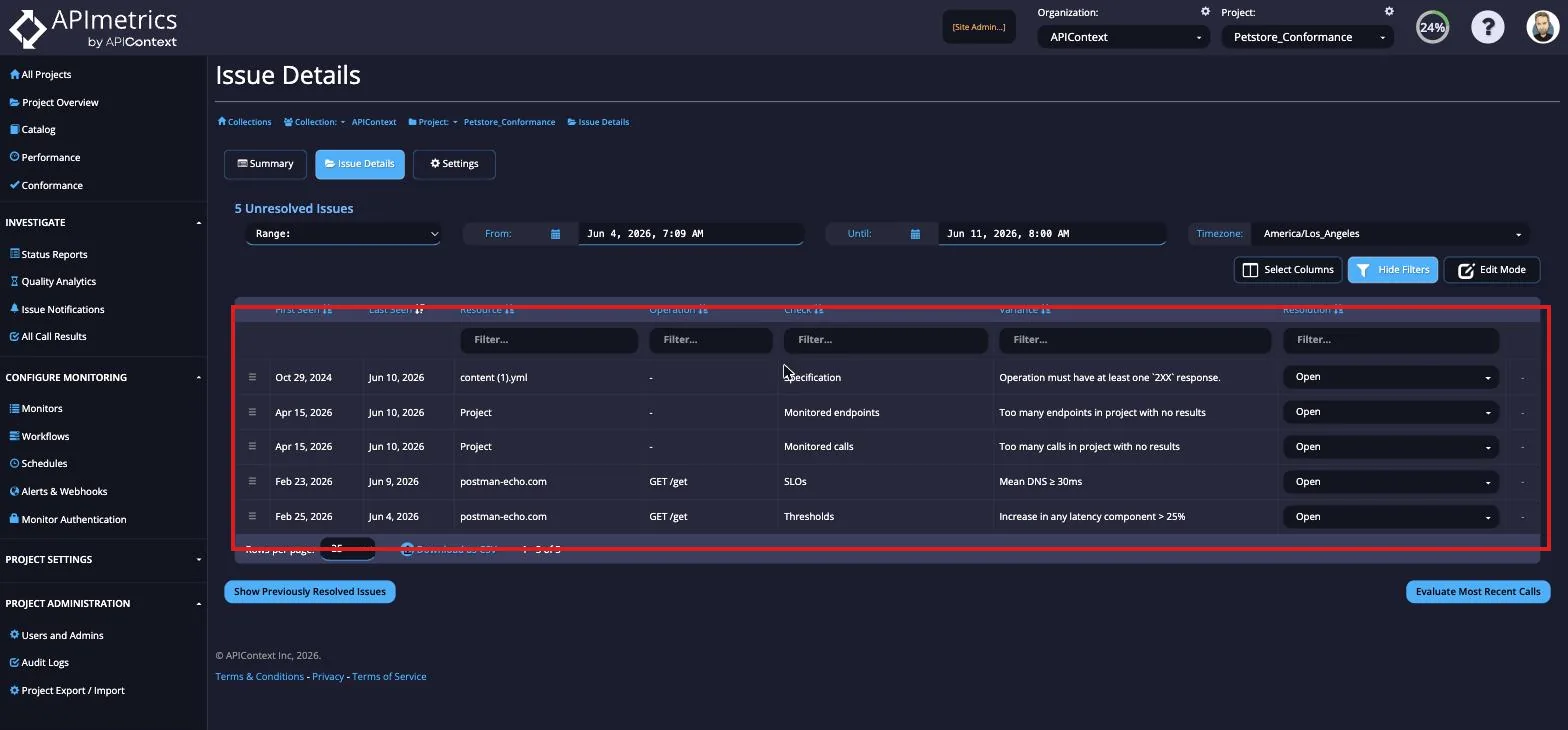
Above the table, you can choose which columns to view. All are automatically shown, except the ID column and the Category from the previous page. Each column gives various information to quickly inform you of the outcome of the checks.
- Last Seen - when the issue was last seen by APImetrics.
- Server - the server the monitor is going to, the domain.
- Operation - the HTTP method being used and the endpoint for the monitor.
- Check - the check that was performed, such as Schema or Authentication Token.
- Variance - the issue identified by APImetrics such as an invalid value or a missing header.
- Resolution - the current resolution status for this issue. This is automatically set to Open.
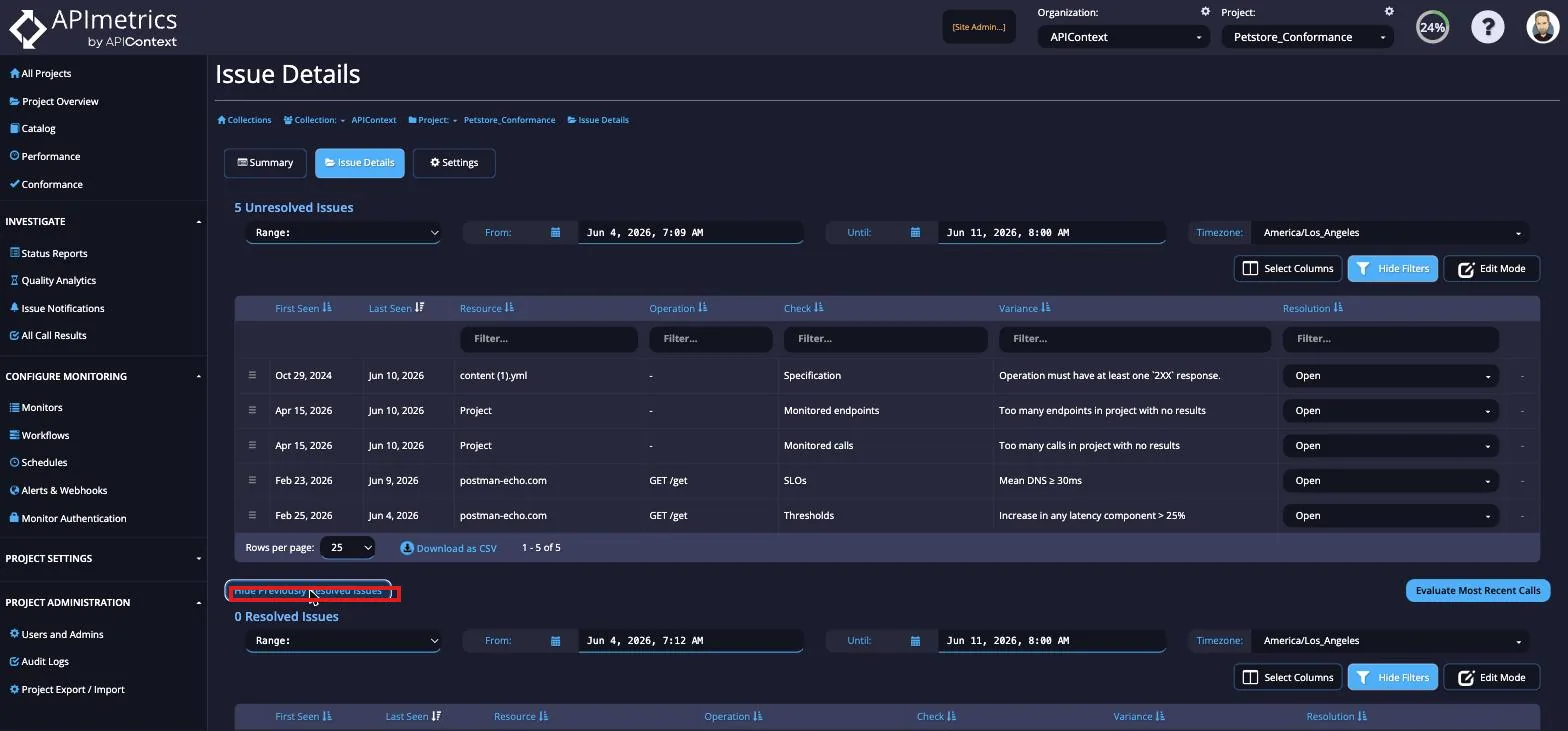
Below the Unresolved Issues table, there is the Show Previously Resolved Issues button. Selecting this will open another table of all the Resolved Issues.
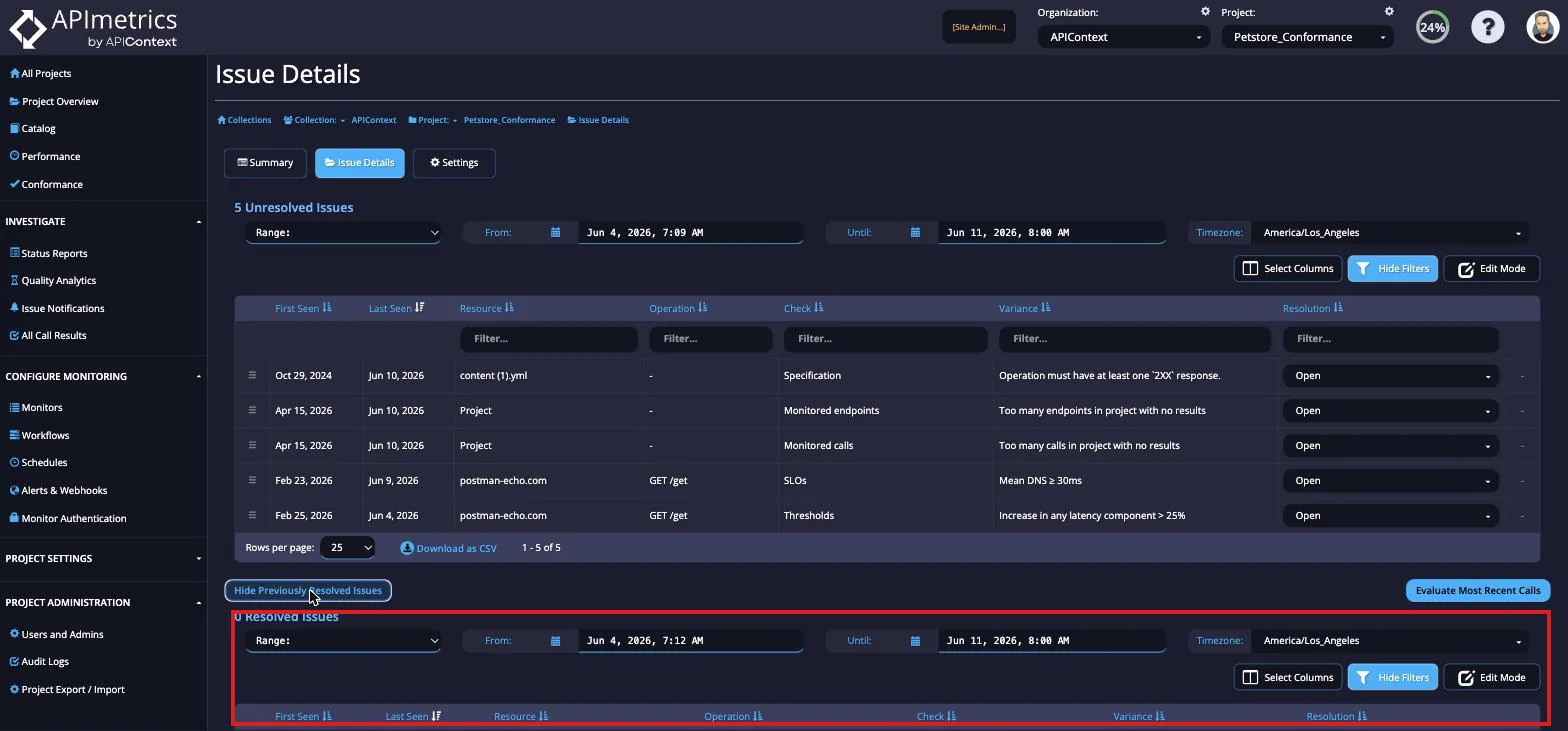
This table can be hidden again by selecting the same button which now shows Hide Previously Resolved Results.
Each row can also be expanded to show more information about the issue.
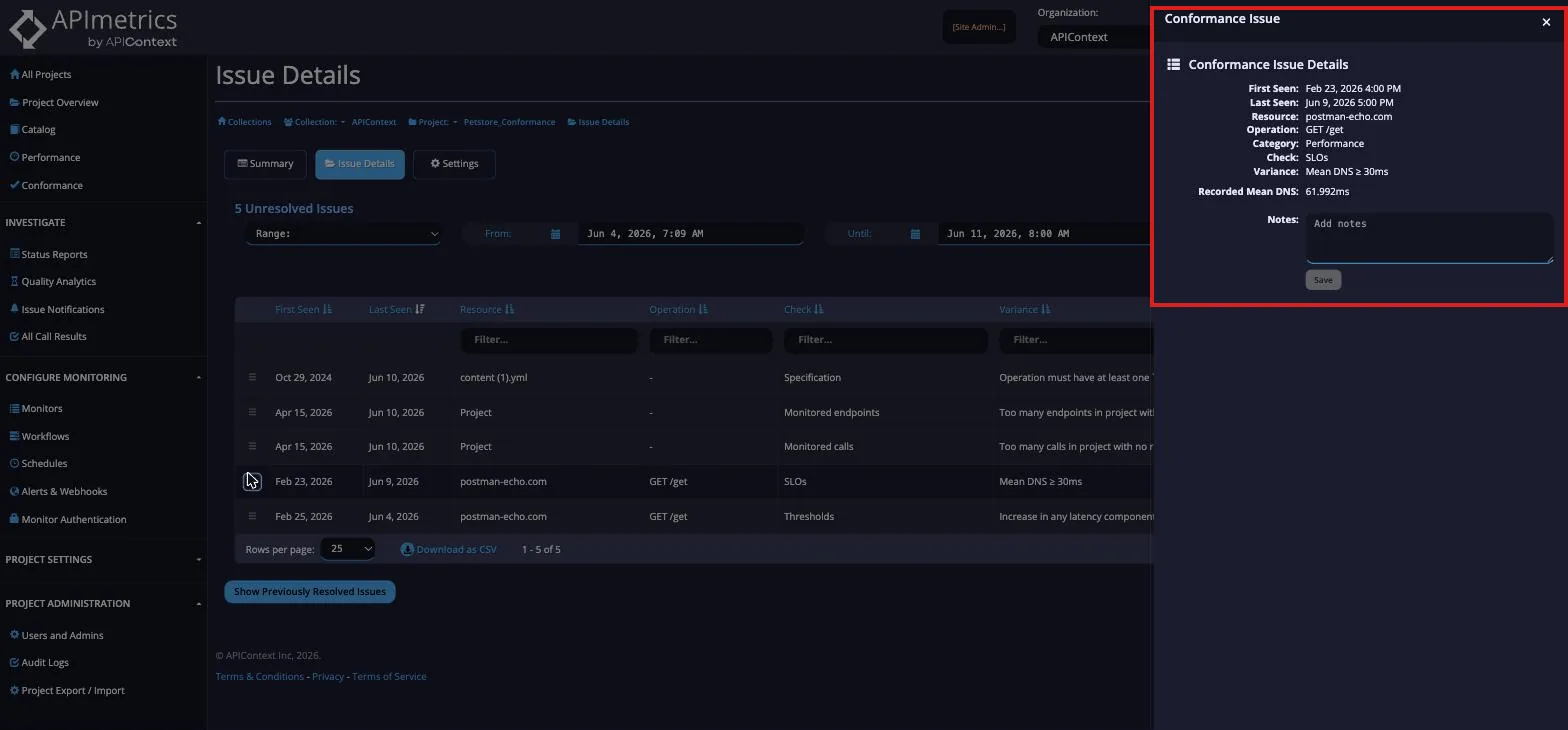
Expanded Options
When any row is expanded, you can add any notes to each issue for ease of communication between different team members.
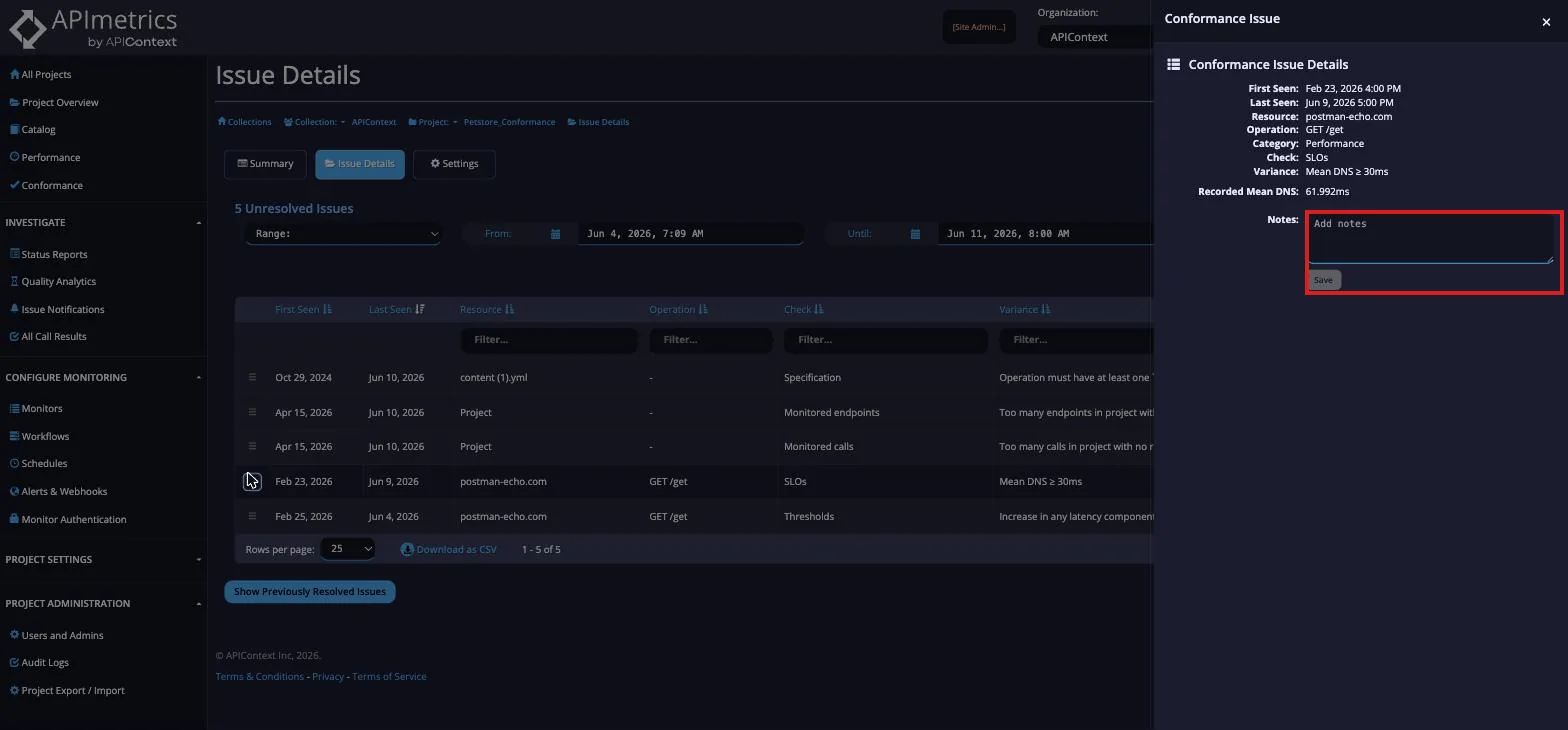
Remember to select Save once you have added your Notes to ensure they are retained.
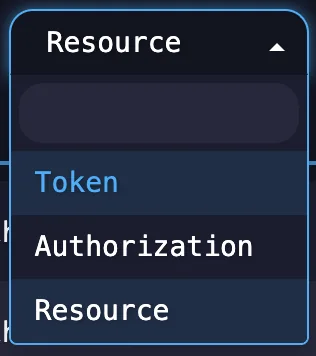
For Security checks, such as Authentication Token checks, you will be able to change the Endpoint classification in case it has been misclassified by selecting the correct one from the dropdown.

Resolution Status
There are four different options for the Resolution Status:
- Open - a new issue will automatically be set as Open. This will keep it in the Unresolved Issues table and is intended to signal that this issue has not been looked at yet.
- Acknowledged - this will keep this issue in the Unresolved Issues table and is intended to signal that this issue has been noted and is being worked on.
- Muted - this will move this issue into the Resolved Issues table and is intended to signal that this issue has been acknowledged but is not of any concern. Even if the source changes, the system will not create a new non-conformance finding. Note: this will still show as a failure in the overall Conformance checks.
- Resolved - this will move this issue into the Resolved Issues table and is intended to signal this issue has been acknowledged and changes have been made to make it conformant.
Update Several Issues at Once
Use Edit Mode to change the resolution of many issues in one save. You need the Owner, Editor, or Analyst role on the Project.
- Open Issue Details.
- Select Edit Mode above the table, next to the column picker. A checkbox appears at the start of each row, and Select All and Save buttons appear.
- Tick the issues you want to update, or select Select All to tick every row on the current page. Select Deselect All to clear the selection. When two or more rows are ticked, a Bulk edit mode badge shows how many rows are selected.
- In the Resolution column of one of the ticked rows, choose the new status. Every ticked row changes to that status in the table. The options are the ones described in Resolution Status.
- Select Save. The Update Conformance Issues window asks whether you want to update the number of issues you selected. Select Save Changes.
A progress bar shows how many issues have been updated. When it finishes, Edit Mode closes and the selection clears. Select Cancel in place of Edit Mode at any point before you save to leave Edit Mode and discard the change.
A bulk update changes only the resolution. Each issue keeps its existing note. If an update fails for an issue, that issue keeps its previous resolution.