

Copy or move resources between projects
Copy a monitor, authentication setting, workflow, or report into another project, or into the same project as a duplicate. Move one when it should live in a different project instead. Both happen on the Manage Resources page.
Prerequisites
- At least Editor access to the project you copy or move from. Without it, Manage Resources shows a message that edit access is needed instead of the form. See Access Roles.
- Owner or Editor access to the project you copy or move to. Only those projects appear in the destination list.
Open Manage Resources
There are two ways in.
From the sidebar. Under Project Administration, select Project Export / Import. The link does not say "Manage Resources", but the page it opens is titled Manage Resources (open it in the platform).

From the resource itself. Monitor pages, workflow pages, and report pages have Copy and Move buttons in the action bar under the page title. Each one opens Manage Resources with that resource already selected. Authentication settings have no Copy or Move button, so use the sidebar for them.

Copy or move a resource
-
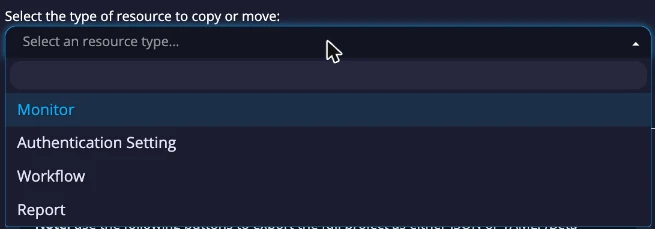
Under Select the type of resource to copy or move, choose Monitor, Authentication Setting, Workflow, or Report.
-
Pick one or more resources of that type. You can select several at once.
-
Under Copy or Move, select Copy or Move.
-
Choose the destination project. To duplicate a resource in the project it is already in, pick that project.
-
Read the check that appears. As soon as you pick a destination, Manage Resources does a dry run and lists what will happen: what will be copied or moved with the resource, what will not be copied, and anything that blocks the operation. A blocked move shows the reason in red and keeps the Move button disabled. A report shows nothing here: it has no dry run.
-
Select Copy or Move, then confirm.
Each resource type carries different things with it. The how-to for each type says what:
- Copy or move a monitor
- Copy or move an authentication setting
- Copy or move a workflow
- Copy or move a report
Moving an authentication setting or a workflow moves every monitor that uses that setting or is in that workflow. Manage Resources says so at the top of the page.
Next steps
- Export or import a project: copy a whole project as a JSON or YAML file. The Project Export and Project Import panels are on the same page, below the copy and move form.
- Schedules: why a copied or moved monitor needs a schedule in its new project.