

Using Webhooks
Key Concepts
A webhook is a mechanism for connecting systems together simply. Webhooks can be used to link APImetrics to management and other systems so that data and alerts can easily be pushed to the external systems from APImetrics.
For most webhooks, you will need to enter a key or some other information that is provided to you by the service associated with the webhook. When a condition you set is met within APImetrics, a message will be generated that is pushed to the service by the webhook.
Supported Webhooks
APImetrics supports the following services:
- Generic
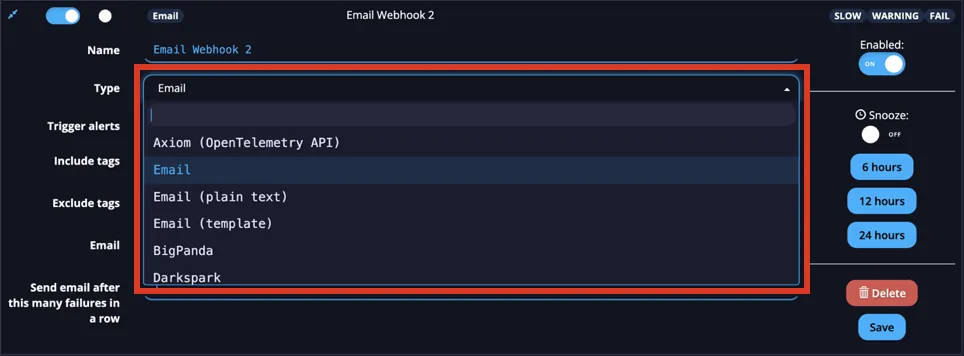
- Axiom (OpenTelemetry API)
- Email (plain text)
- Email (template)
- BigPanda
- Datadog (sends every result through a Datadog integration on your Organization; see Export to Datadog)
- DataDog Metric and Datadog Event (legacy)
- Flowdock
- HipChat
- Hydrolix
- Microsoft Teams
- New Relic
- OpenTelemetry
- OpsGenie
- PagerDuty
- Slack
- StatusPage
- VictorOps
If you don't see the service you need in that list, please contact support. It is usually quick and easy for us to add a new webhook.
Alerts & Webhooks Page
You can use webhooks to create alerts for all your APIs or for particular APIs. In the sidebar, under Configure Monitoring, select Alerts & Webhooks (open it in the platform) to open the page where you create and edit alerts for all your APIs.
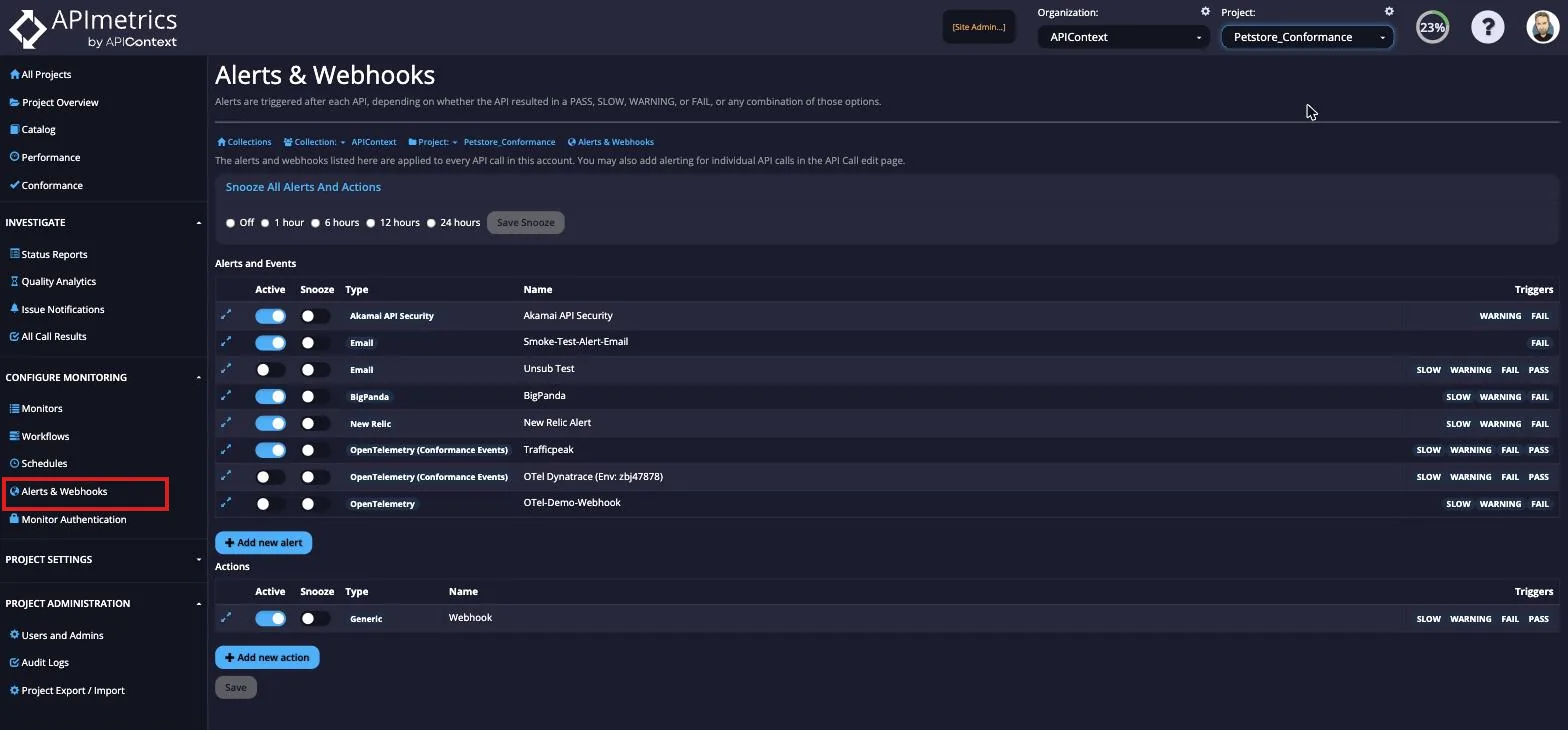
If you have already created alerts, these will be shown on this page and you can edit the alerts by expanding your desired alert.
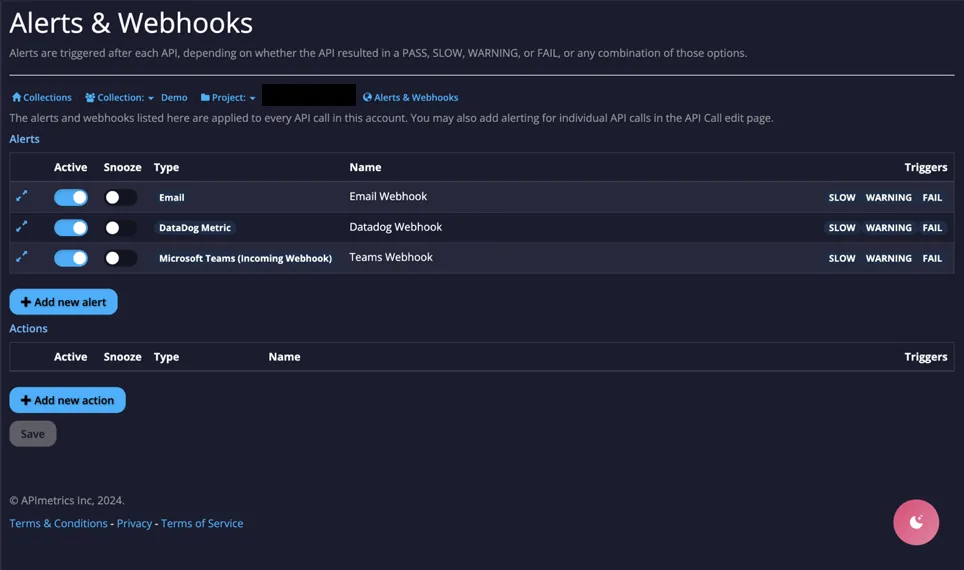
Add a New Webhook
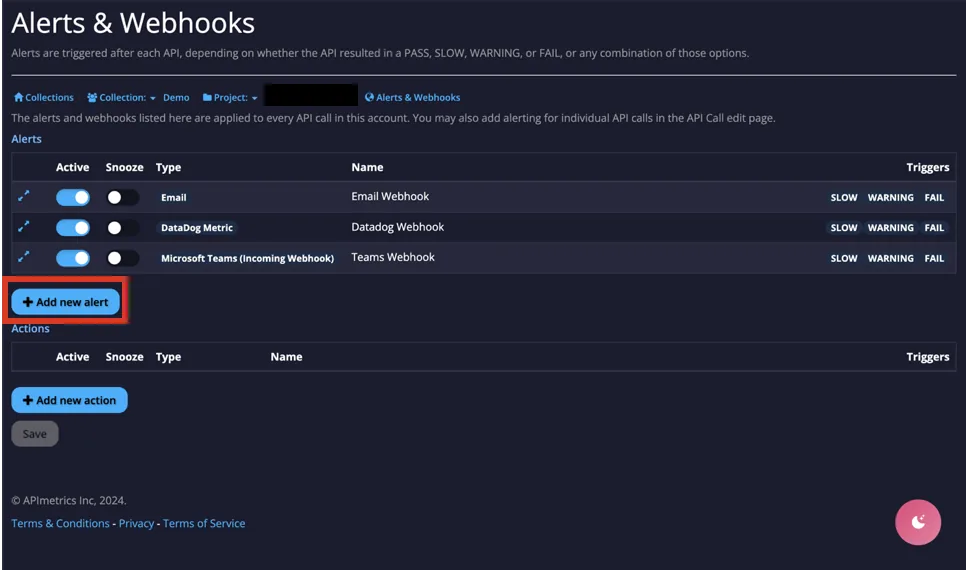
Click on the +Add New Alert button.
From the dropdown, choose the type of webhook you want to create.
Enter a name for the alert. The alert will automatically be Active but this can be toggled on and off without removing the alert. From the Trigger alerts options, toggle the conditions you want to trigger the alert. The conditions are Pass, Slow, Warning, & Fail. By default, Slow, Warning, and Fail are enabled.
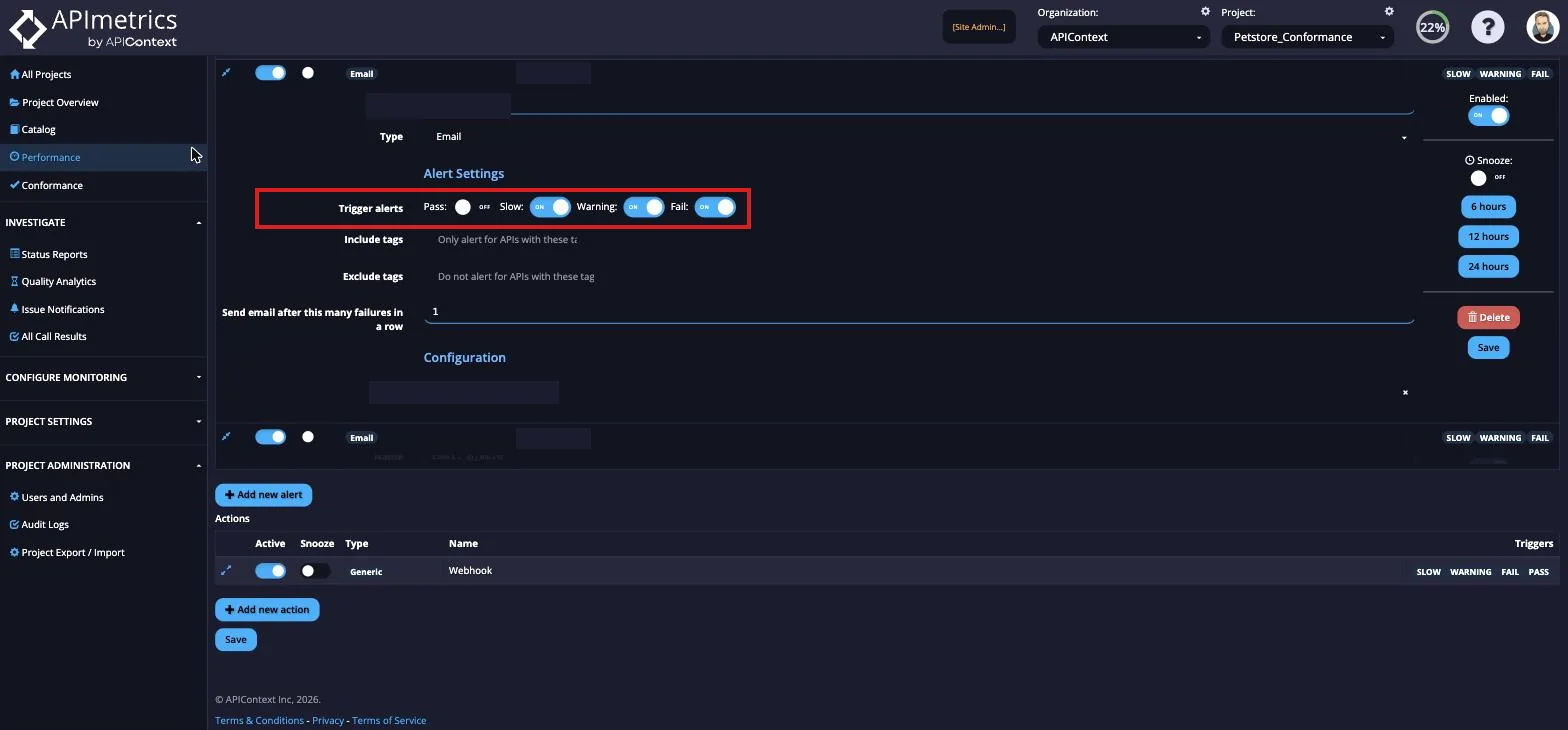
Enter the details needed for your alert. For this example, it is an email address. APImetrics will automatically populate with email addresses linked to the project so a dropdown will appear and select which should receive the alert.
Save your alert. If you have enabled it, it will now be active and alerts will start appearing through the relevant webhook when the trigger conditions are met.
Snoozing Alerts
If you are aware of maintenance or have known issues with your service and want to snooze your alerts, you can simply do this by selecting the desired length of time from the right-hand side.
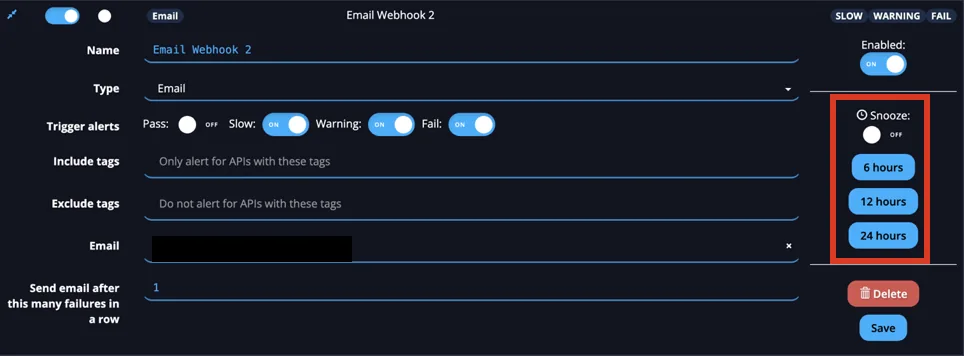
After the allotted time, the alerts will begin again.