

Exclude APIs from Conformance checks
Use this guide when one monitor should not be checked for conformance, for example a helper API or a monitor that is not subject to the same conformance requirements as the rest of your project. The Skip Conformance Checks setting turns off Schema and Security conformance checks for that monitor.
To exclude a monitor from Schema and Security Conformance checks:
- Open the monitor: In Monitors, select the monitor to open its Edit Monitor page.
- Open the Advanced tab: Click the Advanced tab and scroll to Advanced features.
- Turn on Skip Conformance Checks: Switch on Skip Conformance Checks. The setting reads: "Do not perform Conformance checks on this Monitor's results."
- Save your changes: Click Save.
Always in not monitored list is a different setting
Always in not monitored list, under Home page behavior, is not the setting for conformance checks. It removes the monitor from the Monitors in Schedules table on the Project Overview. To learn what it does, see Remove a monitor from the monitored list.
Clear Conformance errors
To clear Conformance errors associated with the excluded APIs, follow these steps:
- Locate the issue: Locate the specific conformance failure in the "Issue Details" section.
- Mark as resolved: Select "Resolved" from the "Resolution" column for the relevant check.
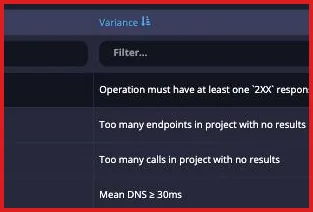
- Refresh data: Click the "Refresh Data" button at the bottom of the list to update the status.
Next steps
- Conformance explained: how conformance checks work.
- Conformance: the Conformance Summary and Issue Details pages.