

Copy or move a monitor
Copy a monitor to reuse its setup in another project, or to make a second version of it in the same project. Move it when it belongs in a different project.
Prerequisites
- At least Editor access to the monitor's project, and Owner or Editor access to the destination project.
- To move a monitor, take it off its schedules first (see What carries over).
Steps
-
Open the monitor and select Copy or Move in the action bar under the page title. The button is on every tab of the monitor (Summary, Edit, Stats, and the rest).

Manage Resources opens with Monitor and this monitor already selected. You can also open it from the sidebar under Project Administration > Project Export / Import (open it in the platform) and choose Monitor. To copy several monitors at once, add them in Select the Monitor(s).
-
Check that Copy or Move is selected under Copy or Move.
-
In Choose which project to copy this into (or move this into), pick the destination. To duplicate the monitor in its own project, pick that project.
-
Read the dry run that appears.
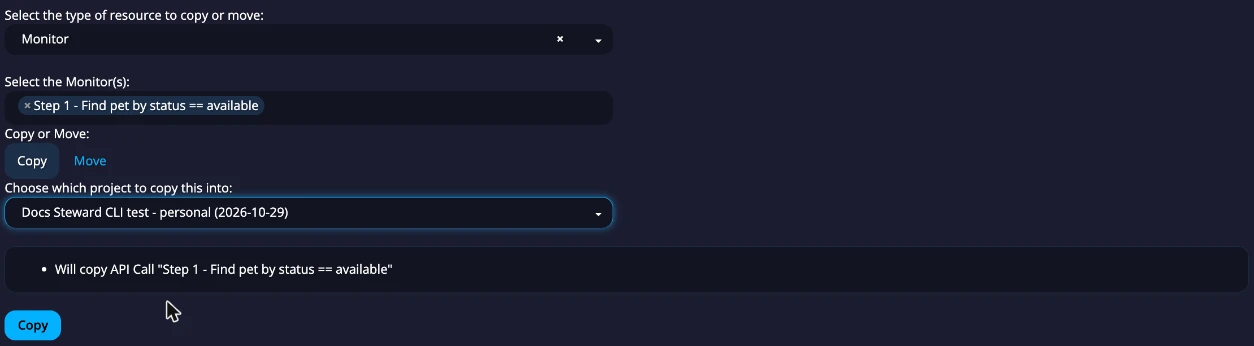
-
Select Copy or Move, then confirm.
What carries over
When you copy a monitor to another project:
- Its authentication setting is copied too, without its tokens. Get a new token in the destination project before the copy can run. See Troubleshoot expired authentication tokens.
- A file the monitor uploads is not copied. The dry run names it.
- It is not added to a schedule. Frequency and locations belong to the schedule, not the monitor, so add the copy to a schedule in the destination project (Schedule monitors).
When you move a monitor:
- A monitor that is on a schedule cannot be moved. The dry run names the schedule; remove the monitor from it first, then add it to a schedule in the destination project.
- A monitor that uses a file cannot be moved.
- Its authentication setting moves with it. If another monitor that is not moving uses the same setting, the move is blocked.
- If the monitor is a step in a workflow that is not moving, it is removed from that workflow. The dry run lists each workflow it will leave.
You do not need to copy a monitor for this. Add the other monitor to the same schedule.
Next steps
- Copy or move resources between projects: the other resource types.
- Copy or move a workflow: move a set of monitors together.