

Copy or move a workflow
Copy a workflow to run the same sequence of steps in another project, or to make a second version of it in the same project. Move it when the workflow and its steps belong in another project.
Prerequisites
- At least Editor access to the workflow's project, and Owner or Editor access to the destination project.
- To move a workflow, take it off its schedules first.
Steps
-
Open the workflow and select Copy or Move in the action bar under the page title.

Manage Resources opens with Workflow and this workflow already selected. You can also open it from the sidebar under Project Administration > Project Export / Import (open it in the platform) and choose Workflow.
-
Check that Copy or Move is selected under Copy or Move.
-
Choose the destination project. To duplicate the workflow in its own project, pick that project.
-
Read the dry run that appears, then select Copy or Move and confirm.
What carries over
Copy copies the workflow and every monitor in it, whether the destination is another project or the same one. The dry run lists each monitor it will copy. In another project, the monitors' authentication settings are copied too, without their tokens, as when you copy a monitor. The copy is not on a schedule.
Move moves the workflow and every monitor in it, along with their authentication settings. A workflow on a schedule cannot be moved: the dry run names the schedule in red and the Move button stays disabled. The same applies if any of its monitors is on a schedule of its own.
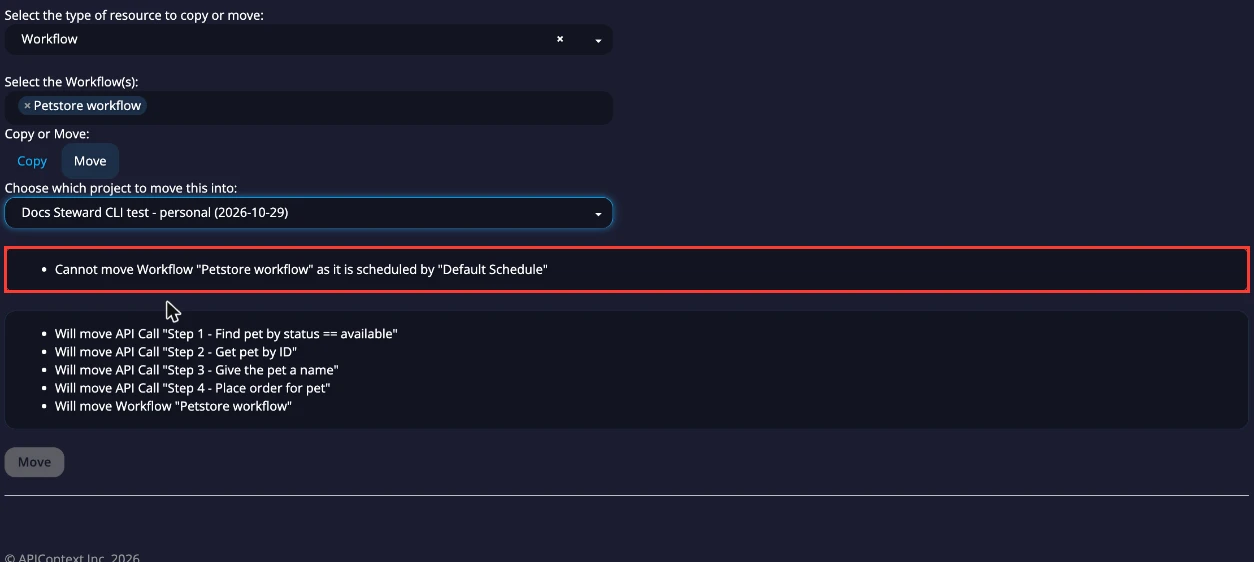
To move it, remove the workflow from its schedules, move it, and then add it to a schedule in the destination project. See Schedule monitors.
Next steps
- Workflows: build and edit the steps of a workflow.
- Copy or move resources between projects: the other resource types.