

Copy or move an authentication setting
Copy an authentication setting to use the same credentials setup in another project. Move it when the setting, and the monitors that use it, belong in another project.
Prerequisites
- At least Editor access to the setting's project, and Owner or Editor access to the destination project.
- To move a setting, every monitor that uses it must be free to move: not on a schedule and not using a file.
Steps
Authentication settings have no Copy or Move button on their own page, so start from the sidebar.
-
In the sidebar, under Project Administration, select Project Export / Import. The Manage Resources page opens (open it in the platform).
-
Under Select the type of resource to copy or move, choose Authentication Setting.
-
In Select the Authentication Setting(s), pick one or more settings.
-
Under Copy or Move, select Copy or Move.
-
Choose the destination project.
-
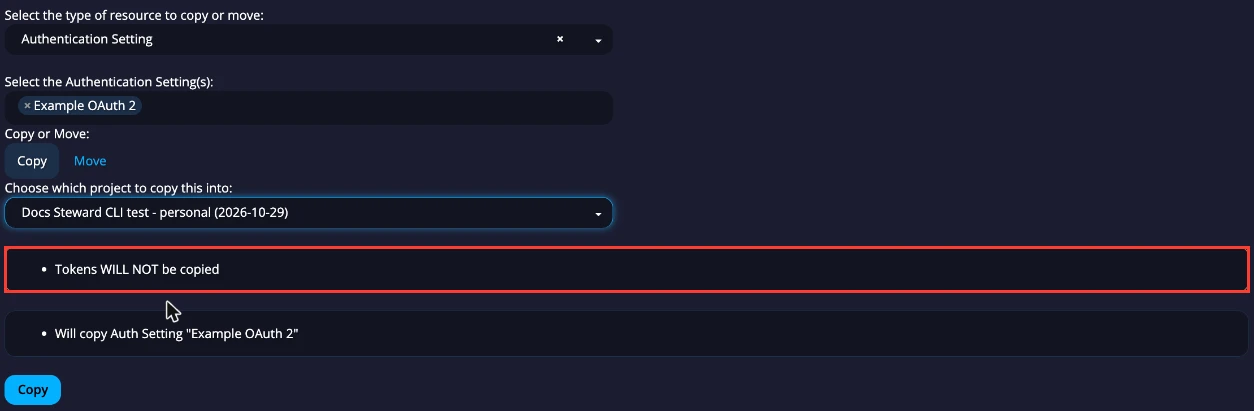
Read the dry run that appears.
-
Select Copy or Move, then confirm.
What carries over
Copy copies the setting only. The dry run warns "Tokens WILL NOT be copied": the copy has no tokens, so create or fetch a token for it in the destination project before a monitor can use it. No monitors are copied with it.
Move moves the setting, its tokens, and every monitor that uses it. Because those monitors move too, the move is blocked if any of them is on a schedule or uses a file. The dry run names each one. After the move, add the monitors to a schedule in the destination project.
Moving an authentication setting is a quick way to move every monitor that uses it in one step.
Next steps
- Monitor Authentication: set up the token in the destination project.
- Copy or move a monitor: copying a monitor to another project copies its authentication setting too.
- Copy or move resources between projects: the other resource types.