

Export to Dynatrace via OpenTelemetry
Our OpenTelemetry Webhook allows you to send your API traffic to Dynatrace. There is no Dynatrace alert type; use one of the two OpenTelemetry types:
- OpenTelemetry sends every monitoring result, as traces. See Send all monitoring results to Dynatrace.
- OpenTelemetry (Conformance Events) sends conformance check results only, as logs. See Send conformance events to Dynatrace.
Configure Dynatrace to Receive Webhooks from APIContext
Generate an Access Token for APIContext in your Dynatrace environment, with the following scopes: "Ingest logs," "Ingest metrics," and "Ingest OpenTelemetry traces." Securely copy the generated access token.
Send all monitoring results to Dynatrace
-
In the sidebar, under Configure Monitoring, select Alerts & Webhooks.
-
Click Add new alert.
-
Enter a Name, such as "Dynatrace results."
-
In Type, under Performance Events, choose OpenTelemetry. Do not choose OpenTelemetry (Conformance Events), which sends conformance events only.
-
In URL, enter the Dynatrace OTLP traces endpoint (replacing
<Dynatrace-Environment-ID>with your environment ID):https://<Dynatrace-Environment-ID>.live.dynatrace.com/api/v2/otlp/v1/traces -
In HTTP Header 1, enter the following header (replacing
<Access-Token>with the access token value copied from Dynatrace):Authorization: Api-Token <Access-Token> -
Under Trigger alerts, turn on Pass, Slow, Warning, and Fail. With all four on, every result is sent.
-
Optional: use Include tags and Exclude tags to limit which monitors are sent.
-
Click Save.
Each result arrives in Dynatrace as an OpenTelemetry trace, starting from the next monitor run. For every span and attribute, see the OpenTelemetry payload reference.
Send conformance events to Dynatrace
In the sidebar, under Configure Monitoring, select Alerts & Webhooks.
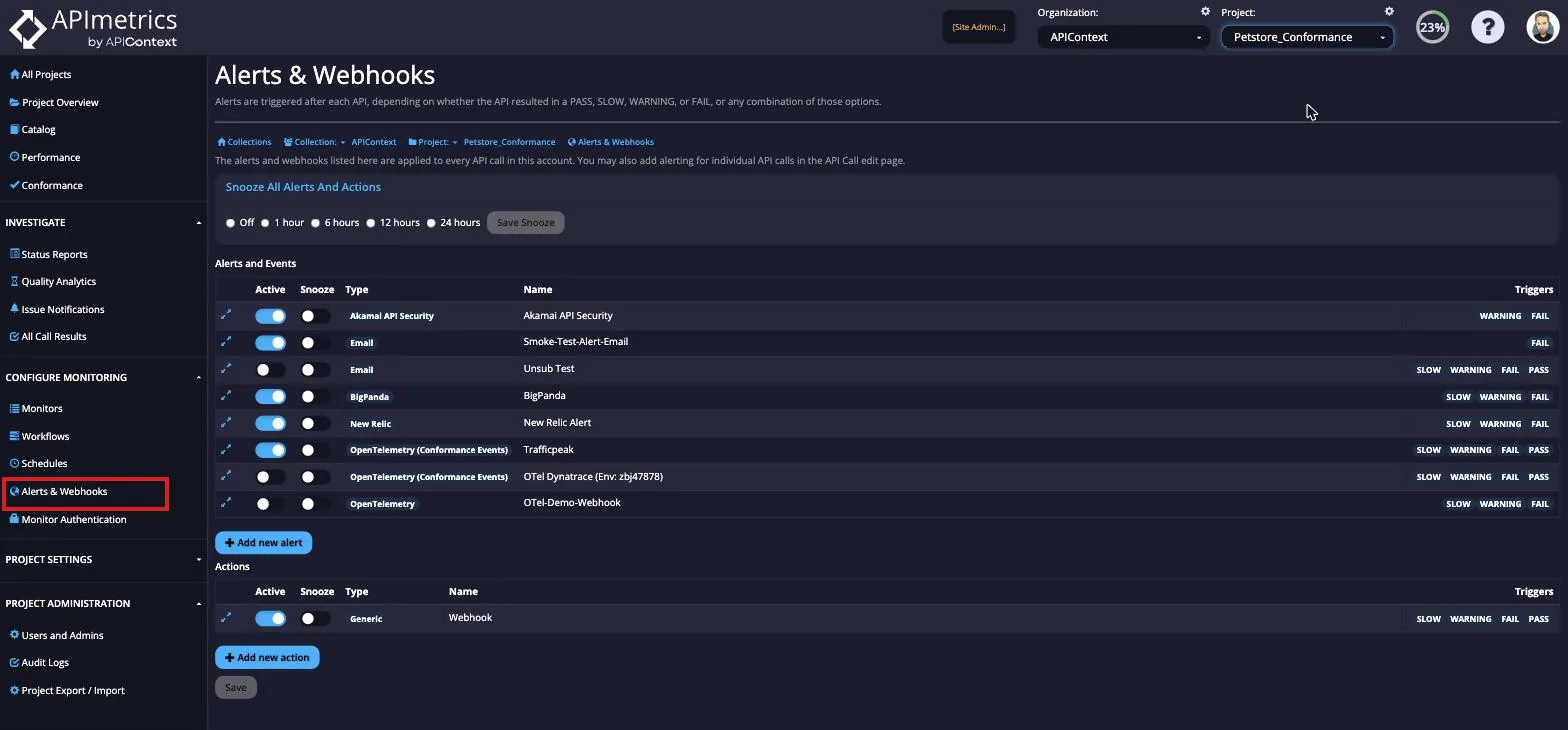
From here, select the Add new alert button.
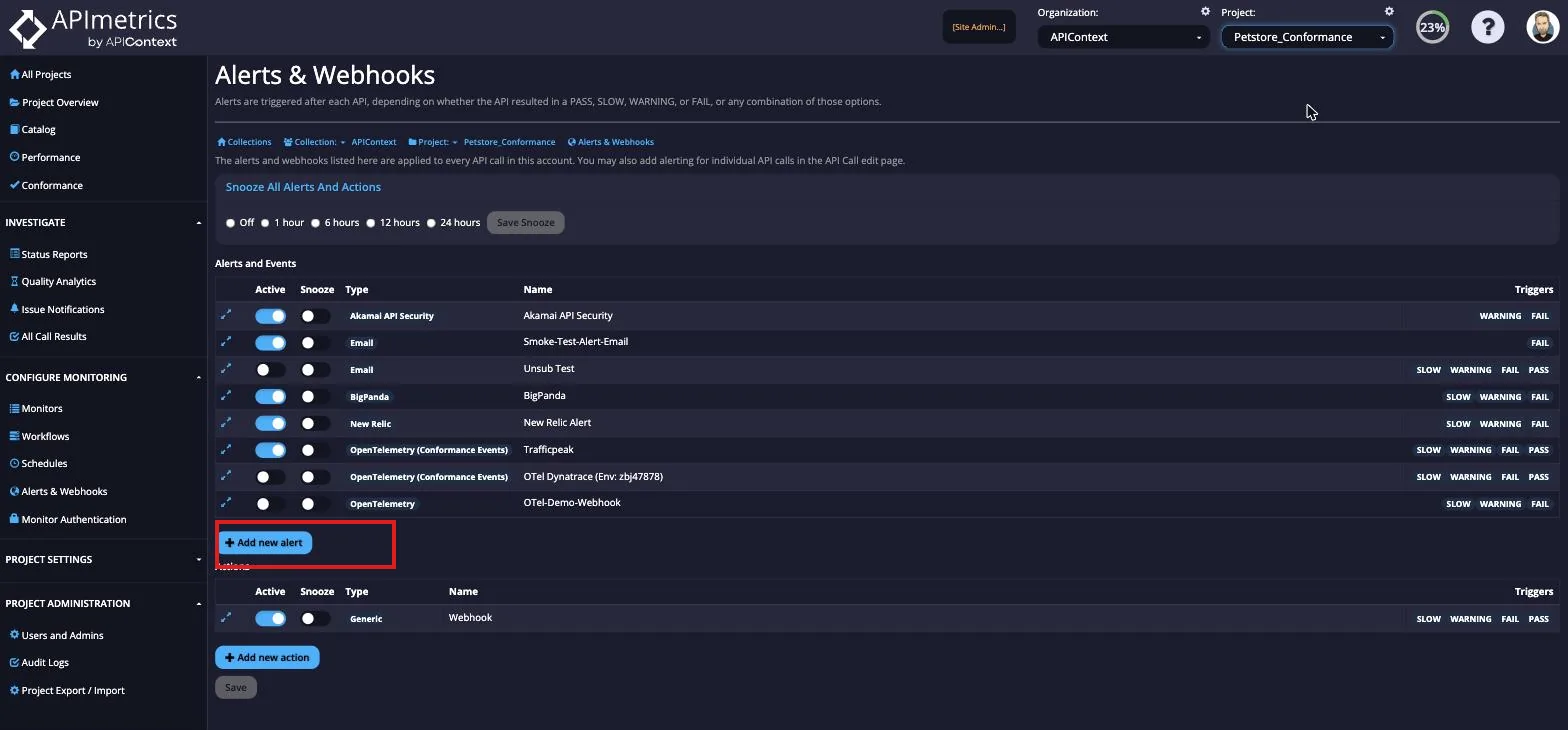
Assign a descriptive name to the webhook, such as "Dynatrace Conformance Events."
Then, select the alert type from the drop down list of "OpenTelemetry (Conformance Events)."

In the URL field, enter the following URL (replacing <Dynatrace-Environment-ID> with your environment ID):
https://<Dynatrace-Environment-ID>.live.dynatrace.com/api/v2/otlp/v1/logs
In the HTTP Header 1 field, add the following HTTP header (replacing <Access-Token> with the access token value copied from Dynatrace):
Authorization: Api-Token <Access-Token>
Then click Save to save the new alert.

Validation
Your data will start flowing to Dynatrace on the next scheduled conformance check. To trigger a manual conformance check, navigate to the Conformance tab, and click "Evaluate Most Recent Calls" on the bottom right corner of the page. Then in the Dynatrace portal, open the "Logs" application, and click “Run Query” to view the ingested logs.